Skip to content

Tips and tricks: Projecting an image onto a sphere in SketchUp

2 minutes read
| |
February 7, 2024

Share this post:

Unlock your creativity with this step-by-step breakdown of how to project an image onto a sphere in SketchUp.
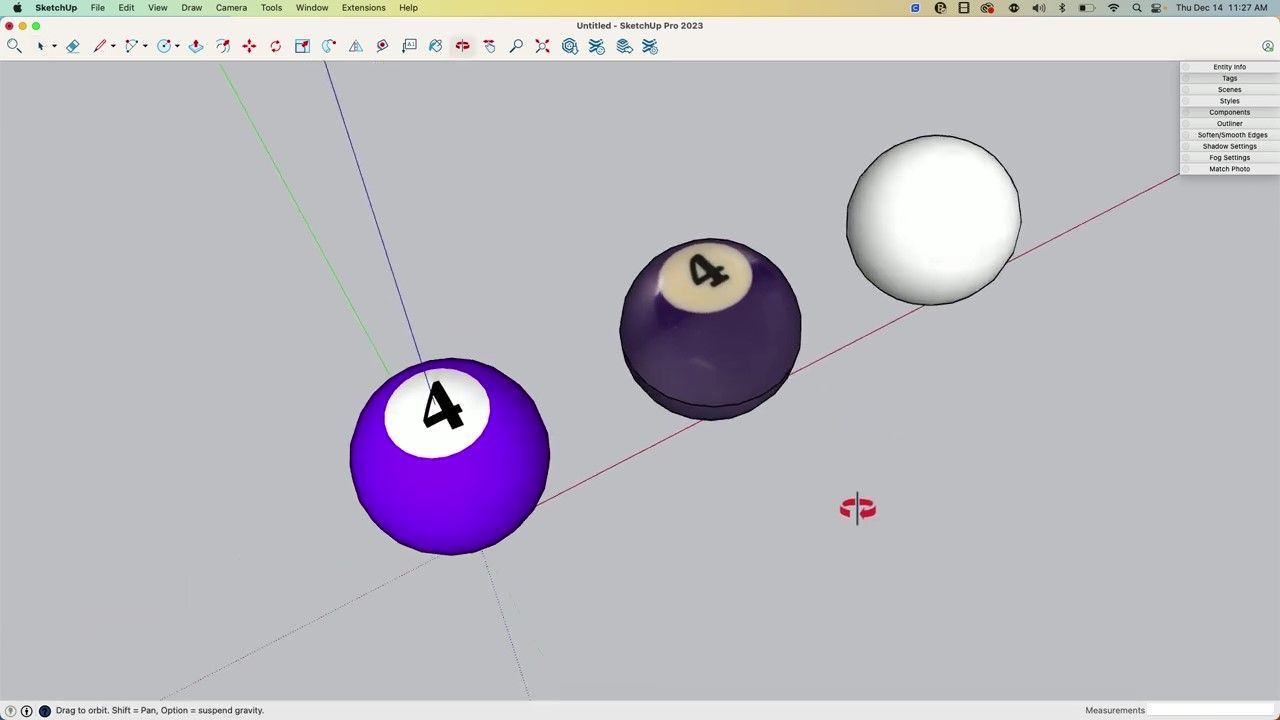
Screenshot of SketchUp UI showing two differently-materialled purple pool balls and a plain white sphere.

SketchUp is more than just a 3D modeling software; it's a playground for your creativity and a way to bring your ideas to reality. But SketchUp isn't just about building models — it's about refining them, perfecting them, and adding the details that breathe life into your designs. Adding images to round objects sounds simple, but it can transform your designs from good to stunning — offering a new level of detail and realism.

Designers and builders who want to get better at modeling in SketchUp: you’ve come to the right place. Mastering the technique of projecting images onto a sphere in SketchUp has never been easier. From pool balls to adding texture to light shades or globes, it’s a game-changing workflow. Check out our step-by-step guide to project images onto spheres, based on Aaron’s video.

Aaron shows how to place an image file perfectly projected onto a sphere in this video.

Step-by-step tutorial

We know these videos can move quickly, so here are step-by-step instructions on projecting an image onto a sphere.
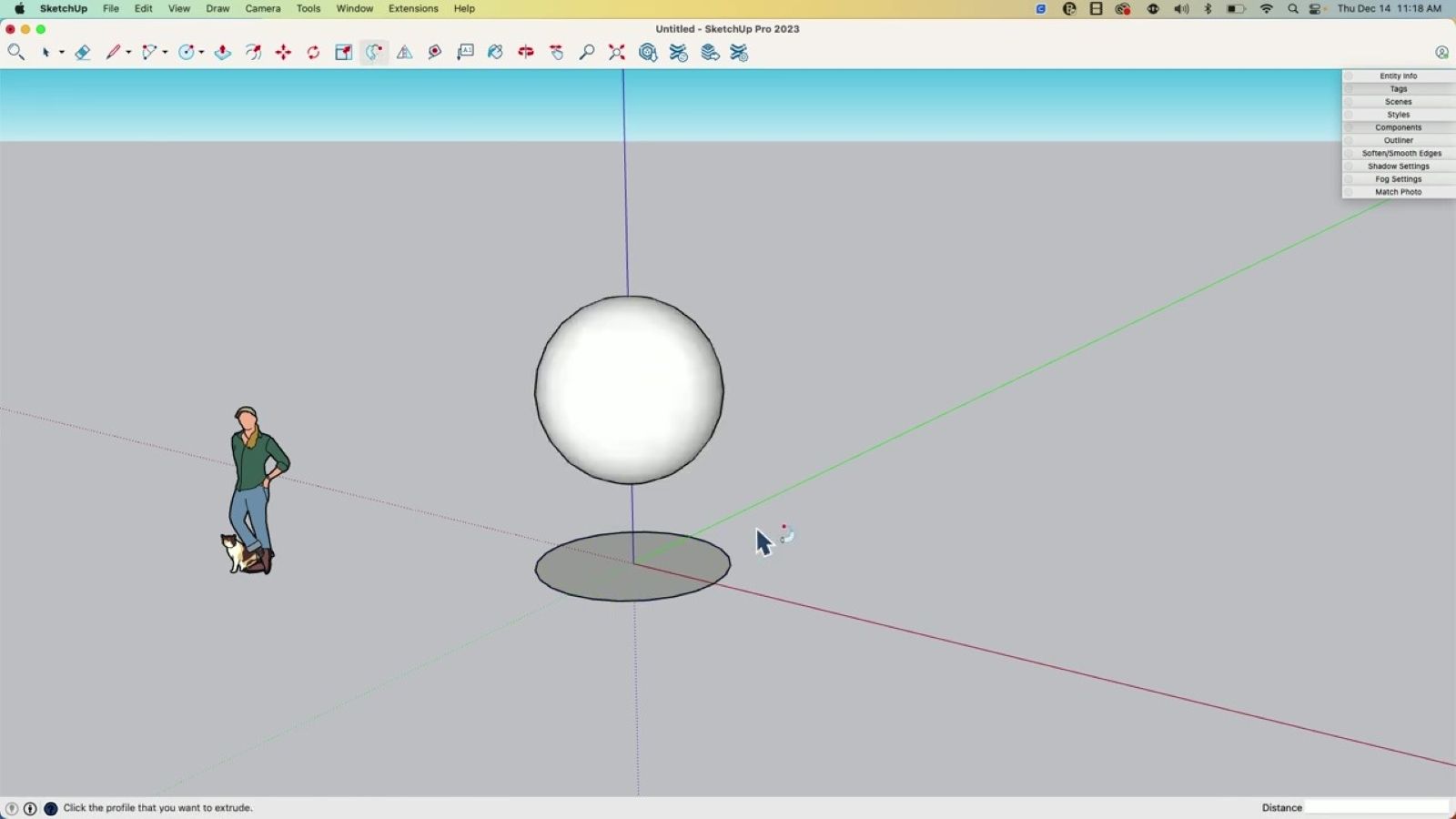
Screenshot of SketchUp UI showing a plain white sphere.

1. First, create the sphere in SketchUp. Use the Circle tool to draw a circle, draw a perpendicular circle of the same radius, and click ‘Follow Me’ to create a 3D sphere.
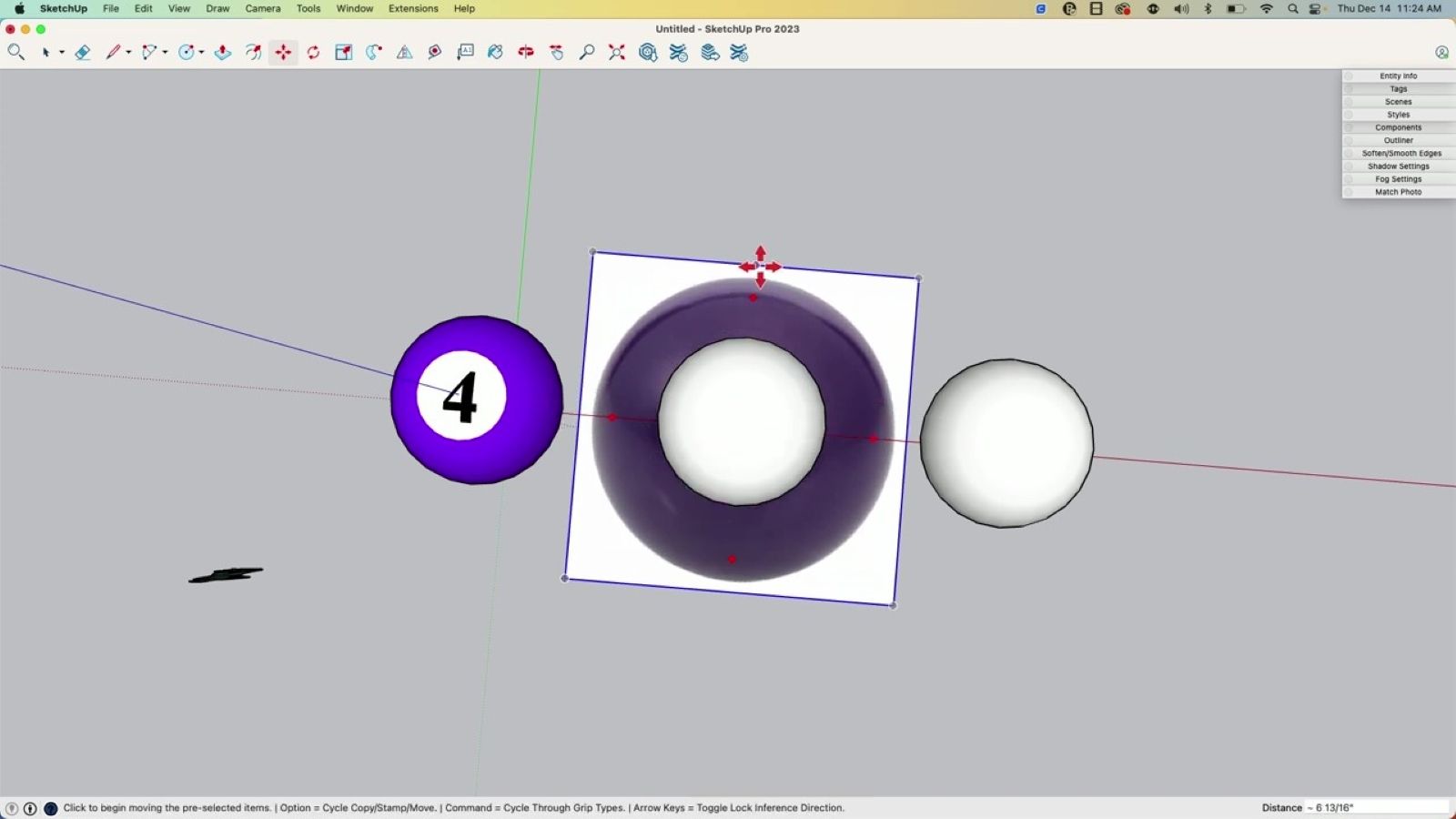
Screenshot of SketchUp UI showing a purple pool ball, a photo of a purple pool ball, and a white sphere.

2. Next, import the image you want to use. Navigate to the 'File' menu, select 'Import,' choose your image, and center it under the sphere using inferencing.
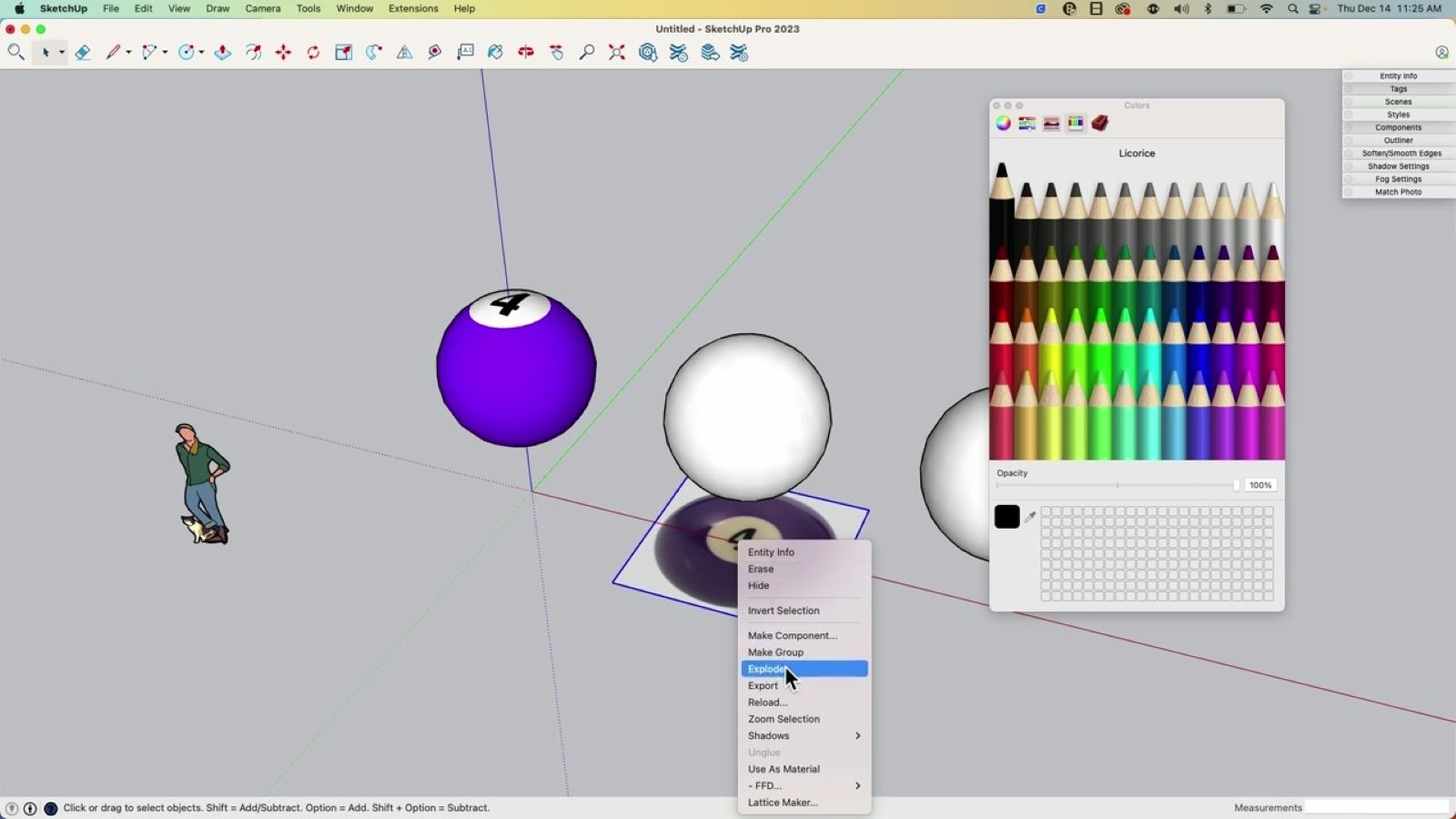
Screenshot of SketchUp UI showing a purple pool ball and two plain white spheres, one partially covered by a color palette.

3. Set up your image. Right-click the image and click ‘Explode’ to create a face with a material on it. To ensure that ‘Projected’ is turned on, right-click only on the face and select ‘Texture.’
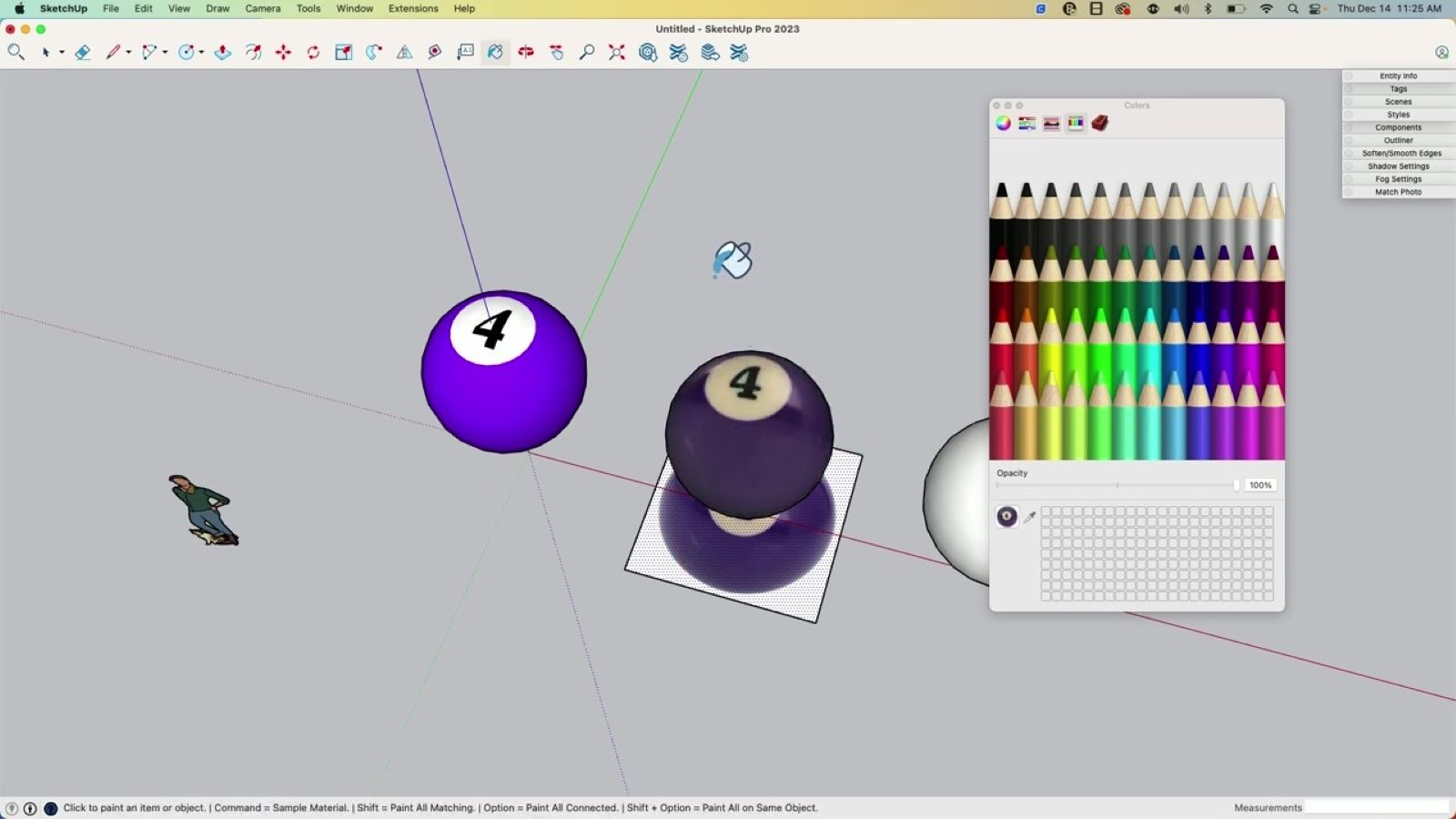
Screenshot of SketchUp UI showing two differently-materialled purple pool balls and a plain white sphere partially covered by

4. Once the image is set up, grab the paint bucket tool. Tap the modifier key Alt (Windows) or Command (Mac) to sample the texture, and then click on the sphere. Then you’ll add the texture to the sphere.

There you have it, a perfect image on your sphere! Adding finishing touches to your models brings your visualization workflow to new heights. 

Troubleshooting

Here are some handy tips to solve problems that may have cropped up while you followed along.

  1. Think about the size and resolution of the images you're working with. High-resolution images can lead to a crisper and more professional-looking projection. However, huge images might slow down your working process, so striking a balance is key. 

  2. Make sure you right-click on the image and verify that it is set to ‘Projected’; otherwise, you may get some funky-looking results.

  3. Remember, it’s okay if it is not perfect on your first try. You may need to resize or move your image around before you get it right.

Don't hesitate to try different images, play with various textures, and refine your technique. Every challenge is a learning opportunity to hone your skills and make you a better designer. Remember, mastering SketchUp is a continuous journey. Even our experts like Aaron keep discovering new workflows or shortcuts to modeling they didn’t know existed. Keep practicing, keep exploring, and we know you’ll succeed. 

If you don’t have SketchUp, don't worry; you can try this workflow using our free trial. If you're ready to start designing your next project in SketchUp, check out our subscription offerings.

Related articles

Article

Turner Construction Company case study

Using software to aid communication and deliver construction projects effectively....
Read full article
Article

Visualize and build automated warehouse systems with SketchUp

Senior Applications Engineer at TGW, an international provider of warehouse automation solutions, sh...
Read full article
Article

Orchestrating a global design sprint for the JAL Lounge at Liverpool's Anfield football stadium

Long-distance collaboration and a short deadline complicated completion of a new hospitality lounge ...
Read full article
Attention

We tried to combine the products in your guest cart with your saved cart, but we encountered an issue while merging them. When choosing a subscription, please select either monthly or yearly as they cannot be combined. Kindly review your cart before proceeding to checkout.

Cart updated
Some items in your cart are not available for purchase in your region, so we removed them. Please review your cart before proceeding.

Items Removed:
Attention

The software you are trying to purchase is not available in your country or region.

Cart updated
The items in your cart have been updated for two reasons. Firstly, the prices now match the currency linked to your account address. Secondly, some items have been removed because they are not available for purchase in your region. Please review your cart before proceeding.

Items Removed:
Cart updated
The items in your cart have been updated for two reasons. Firstly, you've added too many of one item to your cart. Secondly, some items have been removed because they are not available for purchase in your region. Please review your cart before proceeding.

Items Removed:
Cart updated
The items in your cart have been updated for three reasons. Firstly, the prices now match the currency linked to your account address. Secondly, you've added too many of one item to your cart. Thirdly, some items have been removed because they are not available for purchase in your region. Please review your cart before proceeding

Items Removed:
Cart updated

Your currency has been changed to match the currency associated with your account address.

Cart updated

Your cart has been updated for two reasons. First, the prices now reflect the currency associated with your account address. Second, you've added too many of one item to your cart. Please review your cart before proceeding.

Cart updated

While combining the products in your guest cart with your saved cart, at least one item in your cart has exceeded the maximum allowable quantity. Please review and correct your cart before proceeding to checkout.

Attention

We were unable to access your account information. Please contact customer support for assistance.

Attention
Unable to update shopping cart information. Please refresh the page to resolve the issue. If this issue persists, please contact Trimble support.
© 2026 Trimble Inc.

Trimble is a global technology company that connects the physical and digital worlds, transforming the ways work gets done. With relentless innovation in precise positioning, modeling and data analytics, Trimble enables essential industries including construction, geospatial and transportation. Whether it's helping customers build and maintain infrastructure, design and construct buildings, optimize global supply chains or map the world, Trimble is at the forefront, driving productivity and progress.