SketchUp ambassador, architect and founder of Studio Baroli, Mari Baroli shares five practical tips for improving workflows with LayOut, SketchUp's 2D tool, raising the quality of technical drawings and architectural visualizations.


Visualization of projects in a mixed composition of renders and 2D. Images courtesy of Studio Baroli. Drag to the right to see more images.
Mari Baroli is a SketchUp ambassador, architect and founder of Studio Baroli. With over 15 years' experience, she has worked in renowned offices such as André Piva Arquitetura, Miguel Pinto Arquitetura and FEU Arquitetura. The architect has established herself as a specialist in the use of LayOut to create innovative project presentations, using an original and efficient flow from 3D to 2D. She currently teaches about creating technical drawings and striking visualizations, helping other architecture and interior design professionals to captivate and win over more clients.
Mari shares 5 practical tips that she applies in her day-to-day life to speed up the production of 2D documentation and presentations in LayOut, exploiting the tool's full potential.
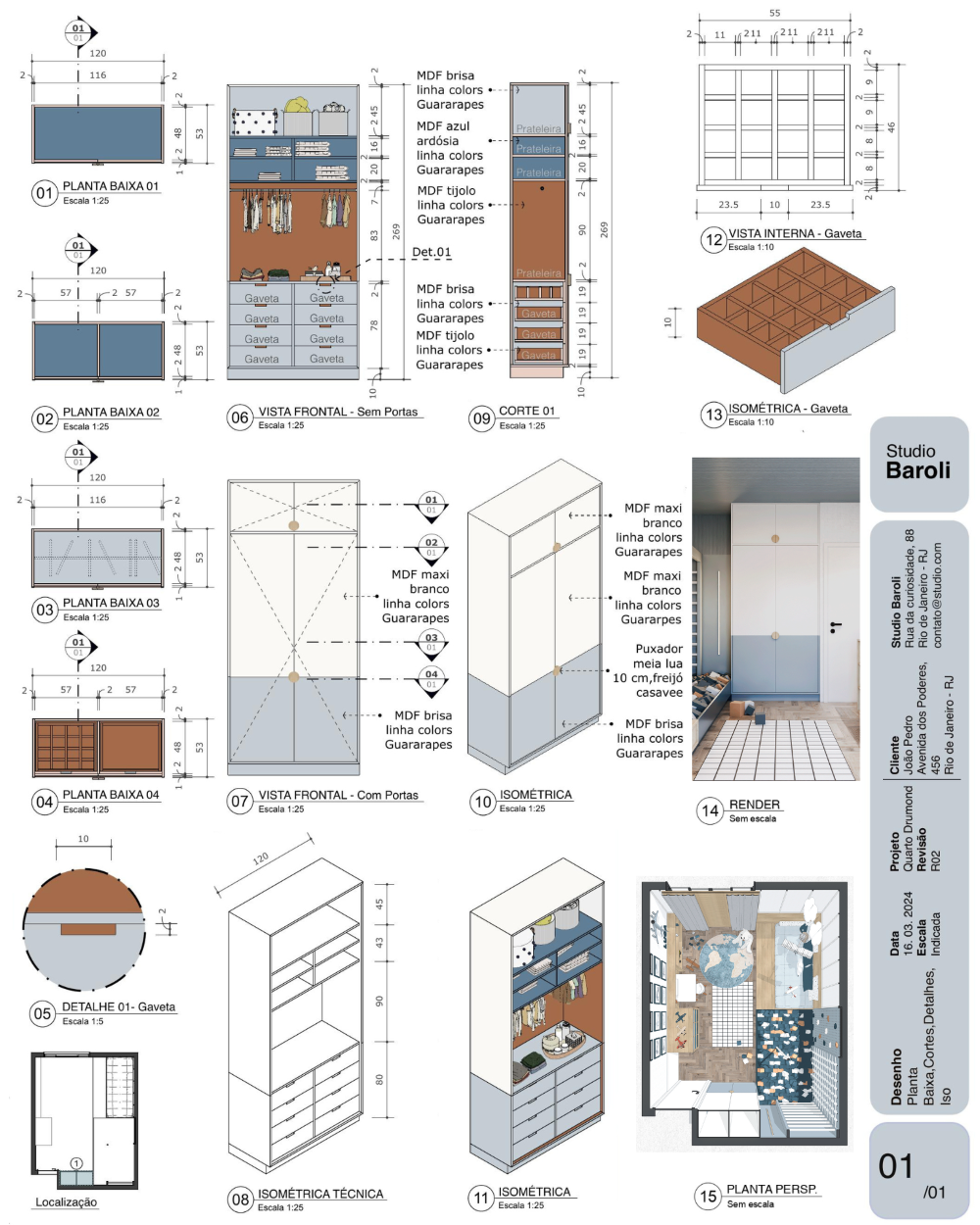
Visualization of a joinery project. Images courtesy of Studio Baroli.
Tip 1: How to save symbologies in LayOut
How? Create or open the symbologies in LayOut on a blank sheet of paper. Then go to File and click on Save as Album. Give your file a name and click Ok. These symbologies will now be available in the Scrapbooks tab, ready to be used whenever you want.
Why? This action speeds up the creation of new technical drawings and helps to optimize day-to-day design.
Watch this video tip on Studio Baroli's Instagram.
Tip 2: How to change the settings of all the dimensions in the drawing at once.
How? Organize the drawing information into layers and leave one of them just for the dimensions. With all the dimensions inside the layer, right-click on it and choose Select Entities. This way you can select all the dimensions in the drawing at once and make any necessary changes.
Why? Changing quotas in this way is much faster than copying the information with the dropper. In addition, we avoid potential errors caused by wrong clicks with the dropper.
Watch this video tip on Studio Baroli's Instagram.
Tip 3: How to solve duplicate drawings in LayOut.
This can happen when the viewport is on a layer that has the repeat setting enabled. To send this viewport to another layer, right-click on the viewport, choose Move to Layer and select the desired layer. Another option is to disable the repeat option for that layer.
Why? This is a very common question among people who are starting to work with software, and it can be easily solved.
Watch this video tip on Studio Baroli's Instagram.
Tip 4: How to make colored hatching
How? Use the pencil or rectangle tool to outline the wall of your project. Select the shape you have just created, and in the Shape Style tab, change the color of the fill. If you want to create a border, use the offset tool to do so. I like to add a pattern to this inner face, so the technical drawing looks even more interesting.
Why? This is a simple way to create a more attractive technical drawing.
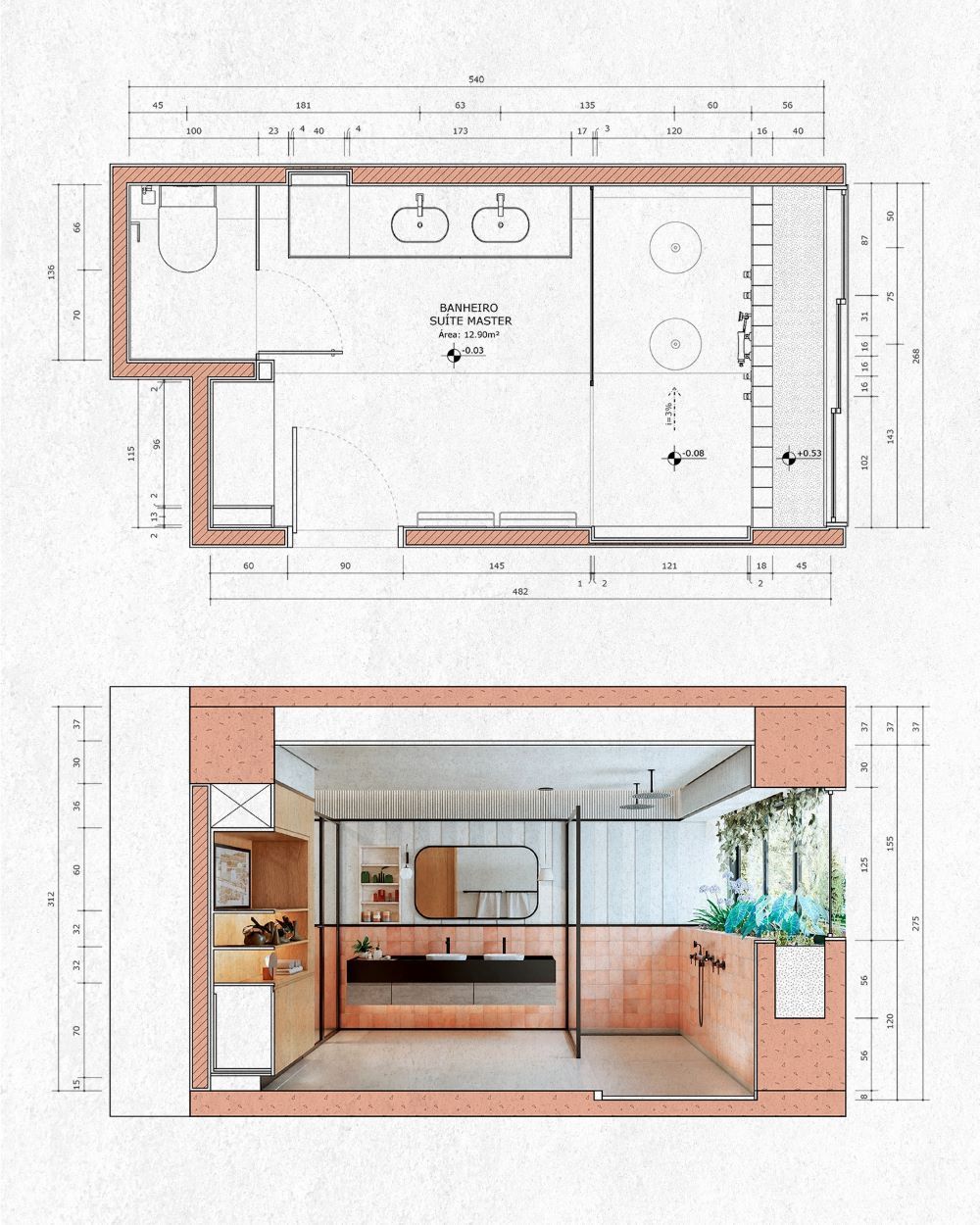
Example of a LayOut project with colored hatching. Images courtesy of Studio Baroli.
Tip 5: How to move faster in LayOut
How? Select the item you want to move. Press the Shift key on your keyboard and the arrow for the direction you want to move. For example: "Shift + 🠒". This way the object will move faster, without going off axis.
Why? This feature makes it possible to move an object more precisely without taking it off-axis.
Watch this video tip on Studio Baroli's Instagram.
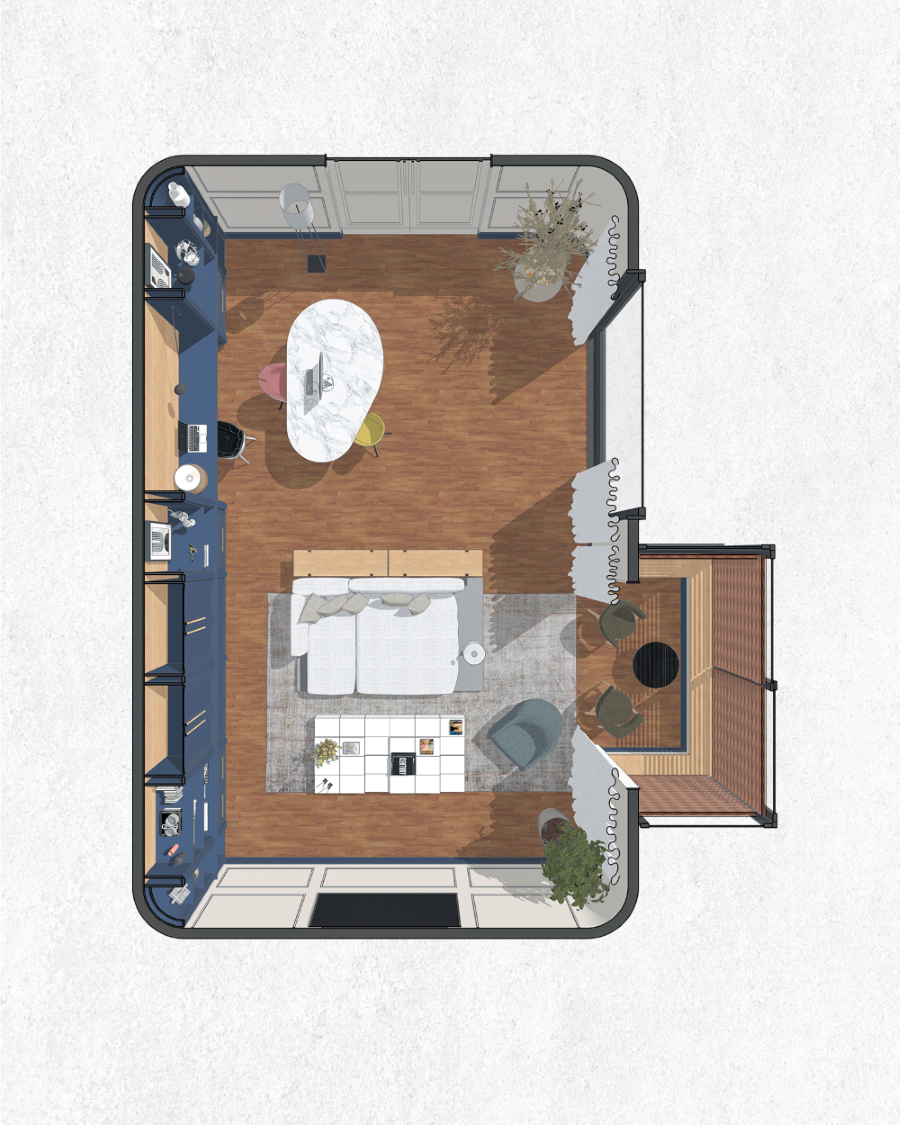
An innovative way of creating a humanized floor plan in an architectural project. Images courtesy of Studio Baroli.
Extra tip: Create healthy models in SketchUp to work more fluidly in LayOut
How?
Make a practice of deleting objects that are not being used and that make your model heavier. To do this, click on Window, select Model Information and click on Delete Unused.
Decrease the thickness of the lines to make the models easier to see and lighter. In the View tab, click on Edge Style and deactivate Profiles. Then save it as a new style or as a setting in your template.
If you use 3D Text in SketchUp, give preference to simpler fonts. Complex 3D fonts lead to a high number of borders, and this can slow down the file.
Before downloading a component from the 3D Warehouse, check the file size. Use the 3D model with the fewest polygons, if possible. Research and compare similar 3D blocks, but they may have different file sizes. Opt for the smallest if it doesn't interfere with the final quality of your project.
Keep Auto Save enabled and program a frequency for SketchUp to save your files automatically. Make sure your 3D files are always safe and synchronized with LayOut.
Why? With these and other good practices, your technical drawings will be faster and more accurate. Healthy 3D models in SketchUp perform better in LayOut.
Watch this video to discover an optimized workflow from 3D to 2D with Studio Baroli, and see complete tutorials on how to create healthy 3D models in this playlist from the SketchUp Brazil YouTube channel.
No matter the size of your project, incorporate LayOut into your workflow and enrich your projects with unique details. Sign up now and impress your clients just like Studio Baroli.
About Studio Baroli
Created in 2022, Studio Baroli has grown rapidly and steadily by delighting clients and followers on social media. Today, with more than 200,000 followers, the firm carries out residential and interior design projects and offers online courses. Mari Baroli is a SketchUp ambassador and a specialist in graphic representations for architecture. See more of Studio Baroli's projects on Instagram. Check out Studio Baroli's courses and learn more about advanced workflows with SketchUp and LayOut.