A new SketchUp Labs feature, Scan-to-Design [Labs], will revolutionize your scanning, model creation, and design process. Do it all in just one app while opening up opportunities for easy collaboration.
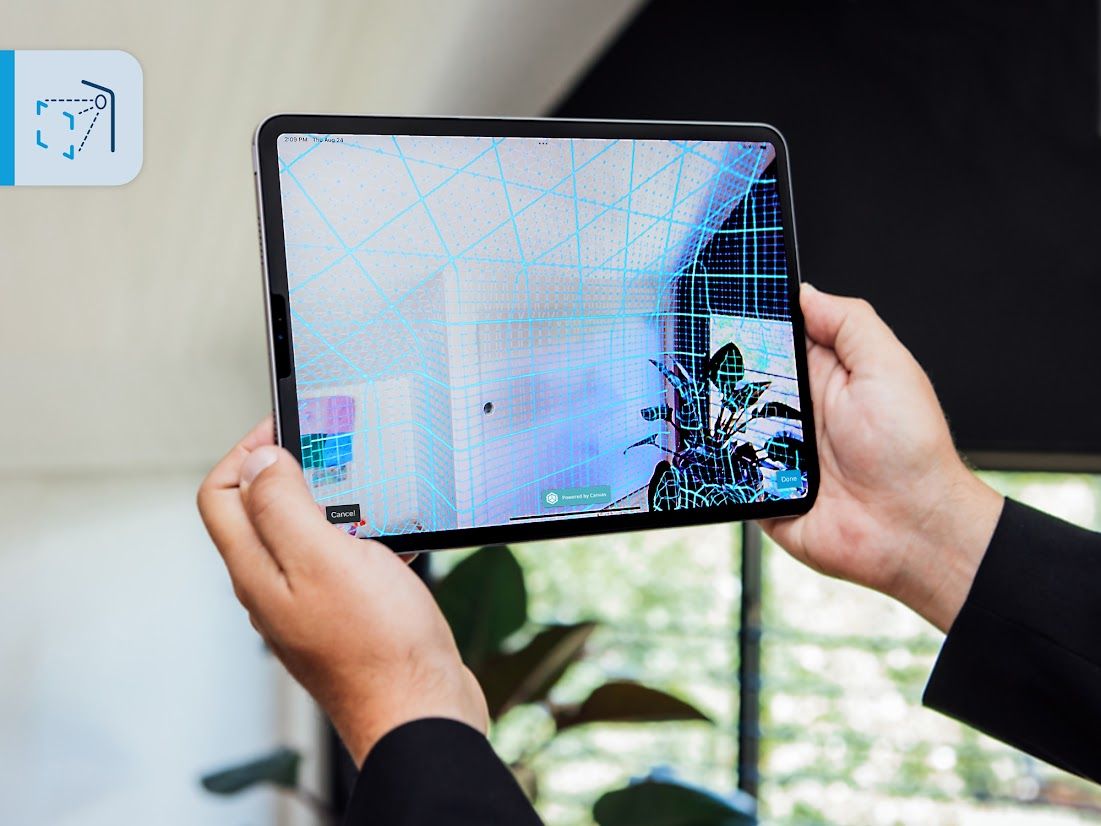
SketchUp Labs, our public beta program, introduces a groundbreaking workflow on iPad that will amplify your productivity. Scan-to-Design [Labs] lets you scan, design, and collaborate — all in one app. Scan existing interior spaces and watch as SketchUp, powered by Canvas, Apple, and Trimble’s cutting-edge technology, transforms your scan data into an intelligently organized SketchUp model. By giving you all the tools within one app, you’ll streamline the process and shorten the time it takes to create as-built models, immediately access 3D geometry as a starting point for design exploration, and open up opportunities for better stakeholder collaboration. Scan-to-Design also captures a comprehensive scan of the space, eliminating the need to go back to the site for missed details later.
Effortless model creation and seamless collaboration
Imagine walking into a client's space, holding up your iPad to scan, and instantly generating a 3D model. With Scan-to-Design, you can quickly iterate on the spot, incorporating your client’s design ideas as they suggest them. Taking advantage of iPad's on-the-go capabilities allows you to turn multiple trips, conversations, and emails into one productive meeting. After capturing your scan data and discussing design options with your client, publish the file to Trimble Connect, our cloud collaboration platform. Your design will be waiting for you when you open up SketchUp on our Desktop and Web applications back at the office or wherever you work.
Watch as an interior designer helps a couple transform their empty space into a playroom for their kid using Scan-to-Design.
Flexible output options
Every project is unique, which is why we offer multiple options for scanning and creating the right 3D model. Customize Scan-to-Design to suit your outputs by choosing between textured 3D meshes that are created leveraging Canvas’ scanning technology or simplified, untextured planes using Apple’s RoomPlan technology – or both.
Generate a photographic visualization of 3D space you can reference for existing conditions. This option is handy for collaborating with clients onsite: generate the scan and annotate it in Markup Mode to present quick design possibilities.
Jump into a simplified, untextured 3D model made up of just the SketchUp edges and faces you’re already used to working with, allowing you to start exploring design concepts immediately.
Start with textured yet editable geometry, perfect for irregular spaces, organic elements, or more intricate shapes within your space, like furniture.
Check out this Help Center article for more information on output options.
Learn more about Scan-to-Design.
Scan-to-Design tutorial
This easy four-step walkthrough demonstrates how simple it is to transform a scan into a 3D model. Follow along on your iPad.
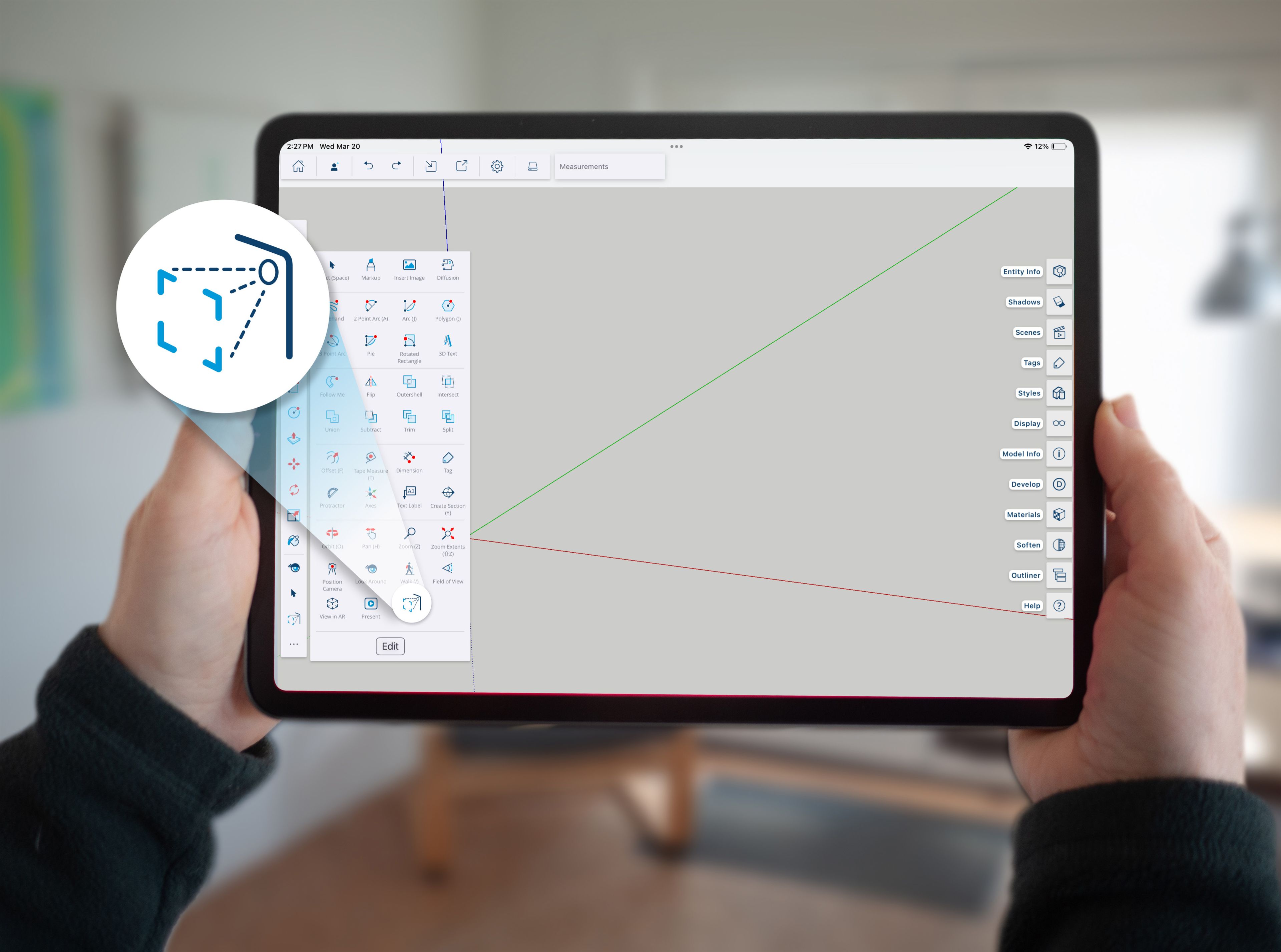
1. Set up your scan: start with an empty SketchUp file on iPad. Activate the Scan tool found in the overflow tool palette.
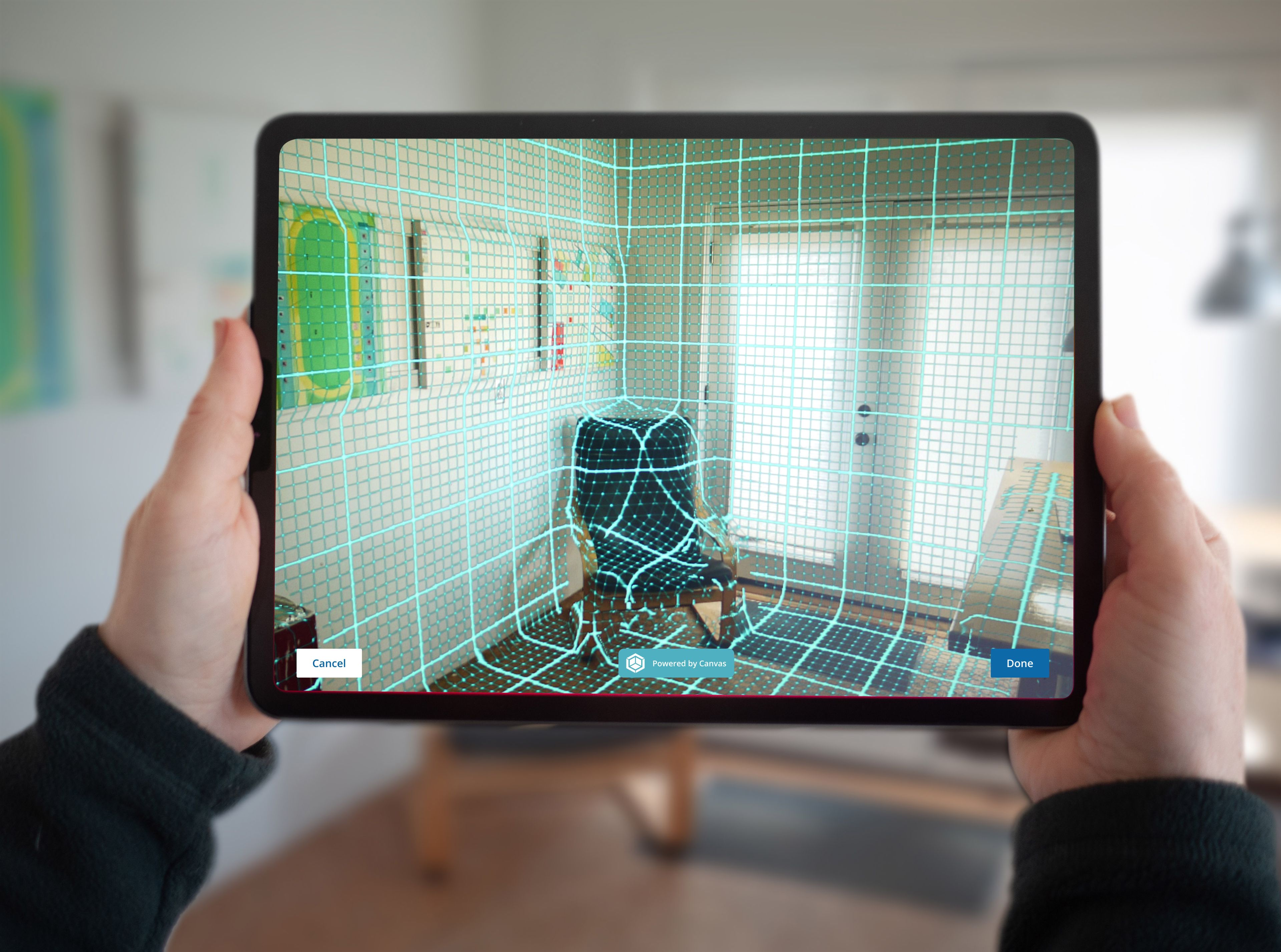
Scan the room: Move your device slowly around the room as if you were painting the walls, continuing in a patterned motion to capture all the details. Follow the on-screen prompts to gather a complete, high-quality scan. When finished scanning the room, click Done. Processing can take a few minutes.
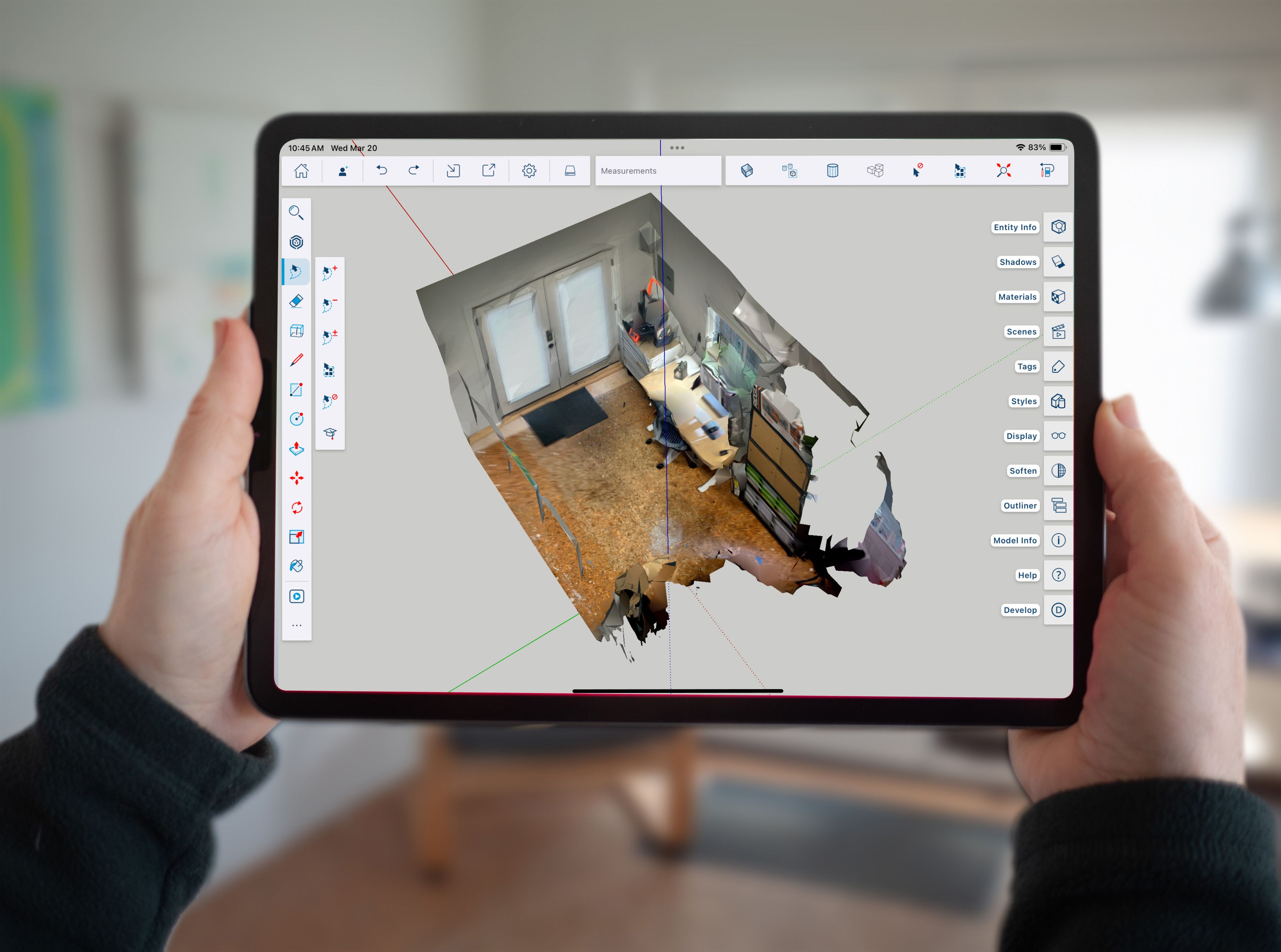
3. Review your output: When processing is complete, you’ll see a 3D model of the space you’ve just scanned in SketchUp for iPad. Each scan is intelligently organized, so you can use the Tags panel or the Outliner to toggle model visibility and focus on the information that is important for moving the project forward.
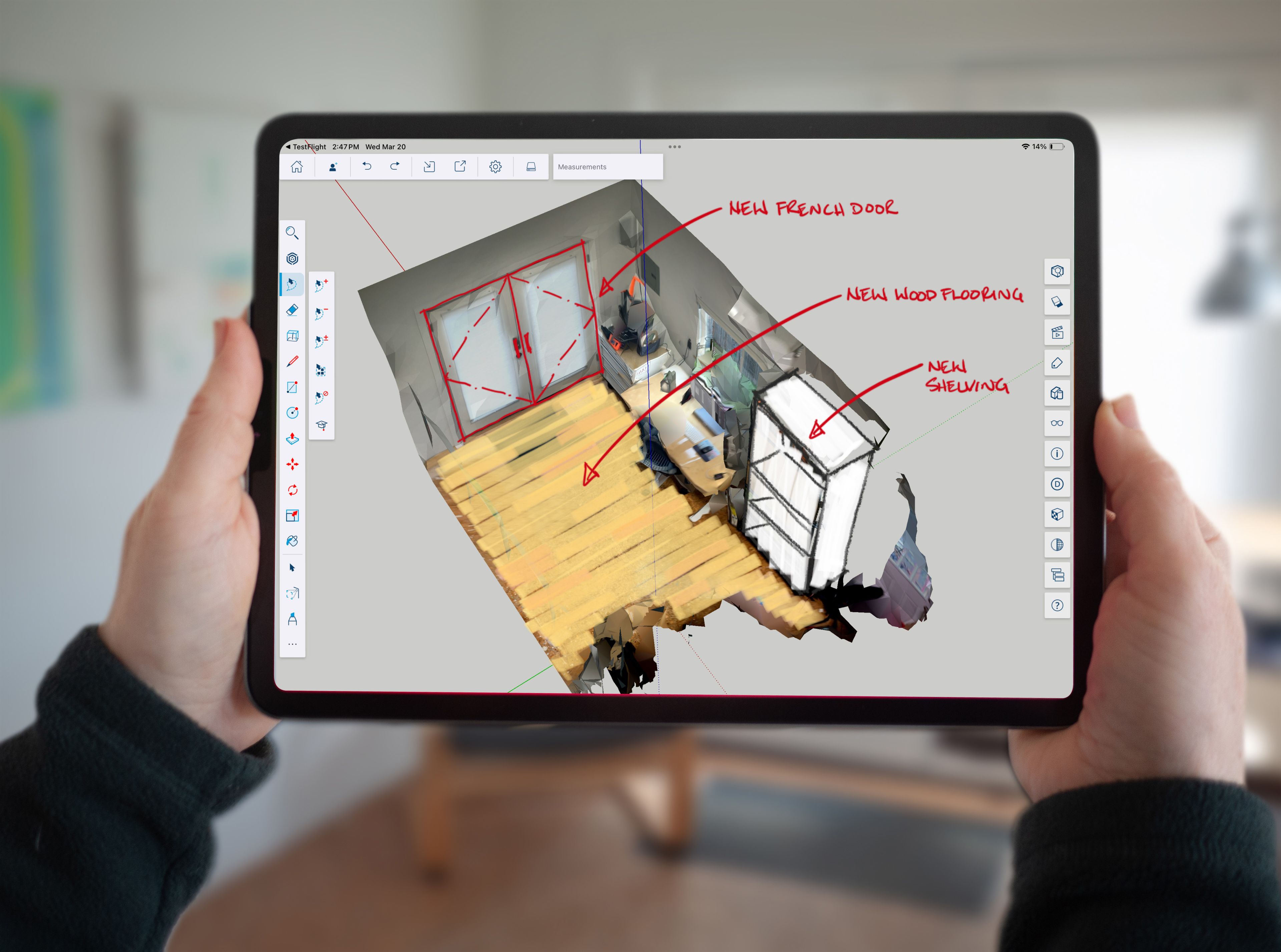
Start designing: use the model created by Scan-to-Design as a reference to start your design or begin creating directly in 3D.
Pro tip: Before you start your projects, open up Preferences > Scan-to-Design to define the perfect output for each scenario.
Ready, set, scan!
Now that you know how to use it, start capturing existing site conditions and transforming them into designs that your clients will love. Launch Scan-to-Design on SketchUp’s iPad application now, or check out the full release notes to learn more.
Scan the QR code to get started.

More to explore
In addition to Scan-to-Design, enhancements like Ambient Occlusion and Omnibar await you in this SketchUp for iPad update. Ambient Occlusion brings your designs to life with stunning enhanced visuals. Available on Desktop and iPad, and visible in LayOut, the new global style setting adds visual emphasis and perceived depth at model edges. Tailor your style setting to produce unique visuals, like a clay or white model aesthetic.
Next up is Omnibar, available on Desktop, Web, and now iPad. This feature provides an intelligent search function to help you efficiently find tools using natural language or UI-specific words. Find what you need faster, and set custom keyboard shortcuts to suit your workflow and preferences, whether you’re new to SketchUp for iPad or an old-timer.
Check out this post to learn more about Ambient Occlusion and other 2024 updates across our Desktop application.
About SketchUp Labs
SketchUp Labs is a testing ground where we can share innovative new features that are still in development. These features harness the power of emerging technologies.
Scan-to-Design [Labs] is a groundbreaking tool built on evolving technology in partnership with Canvas, that offers great possibilities within SketchUp's iPad app.
Getting it into your hands via our Labs program allows us to refine the feature with your feedback and ensures the technology delivers the value you need.
Visit SketchUp's Help Center for more information.


