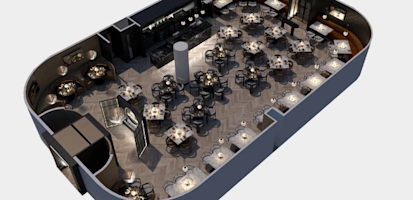
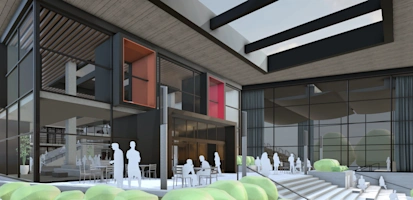
Realistic visuals can certainly add the ‘wow factor’ to a client presentation, but getting the materials to a high level of realism – that’s a challenge. If you want to do that, use sophisticated visualization software like Enscape. Its real-time rendering engine and Material Editor’s capabilities will take your client’s reaction from “that pool looks relaxing” to “I want to cannonball-splash right in.”
Devising jump-off-the-page visuals is fast and simple with Enscape (available on Windows and newly released on Mac) and by understanding Enscape’s material types. Thanks to this concise guide, you can push the level of realism of your renderings even further.
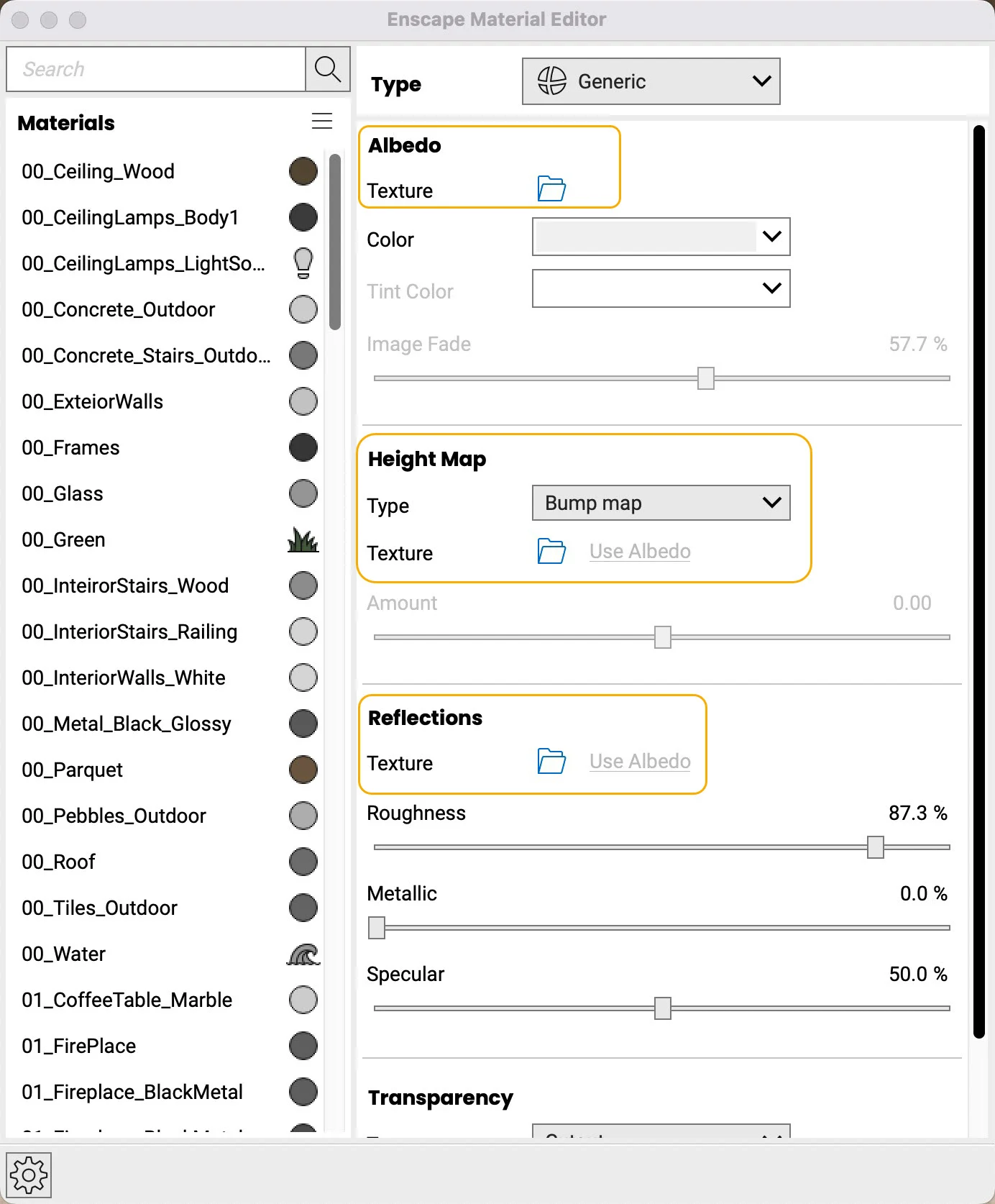
Get started by clicking the Enscape Material Editor button (Hint: look for the checkered ball icon). Once the Material Editor is launched, you should see this screen:
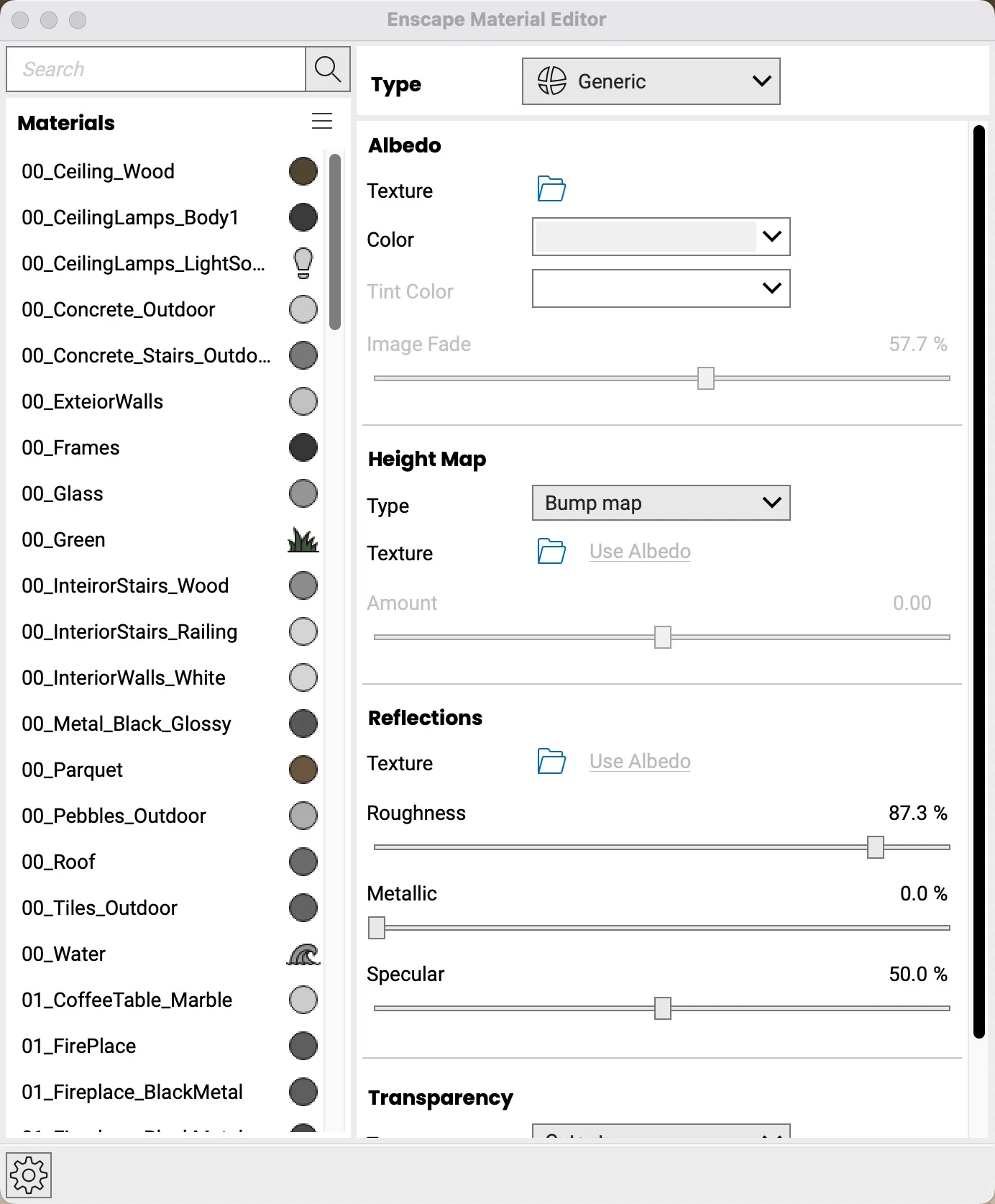
You can see the materials in your SketchUp model on the left side.
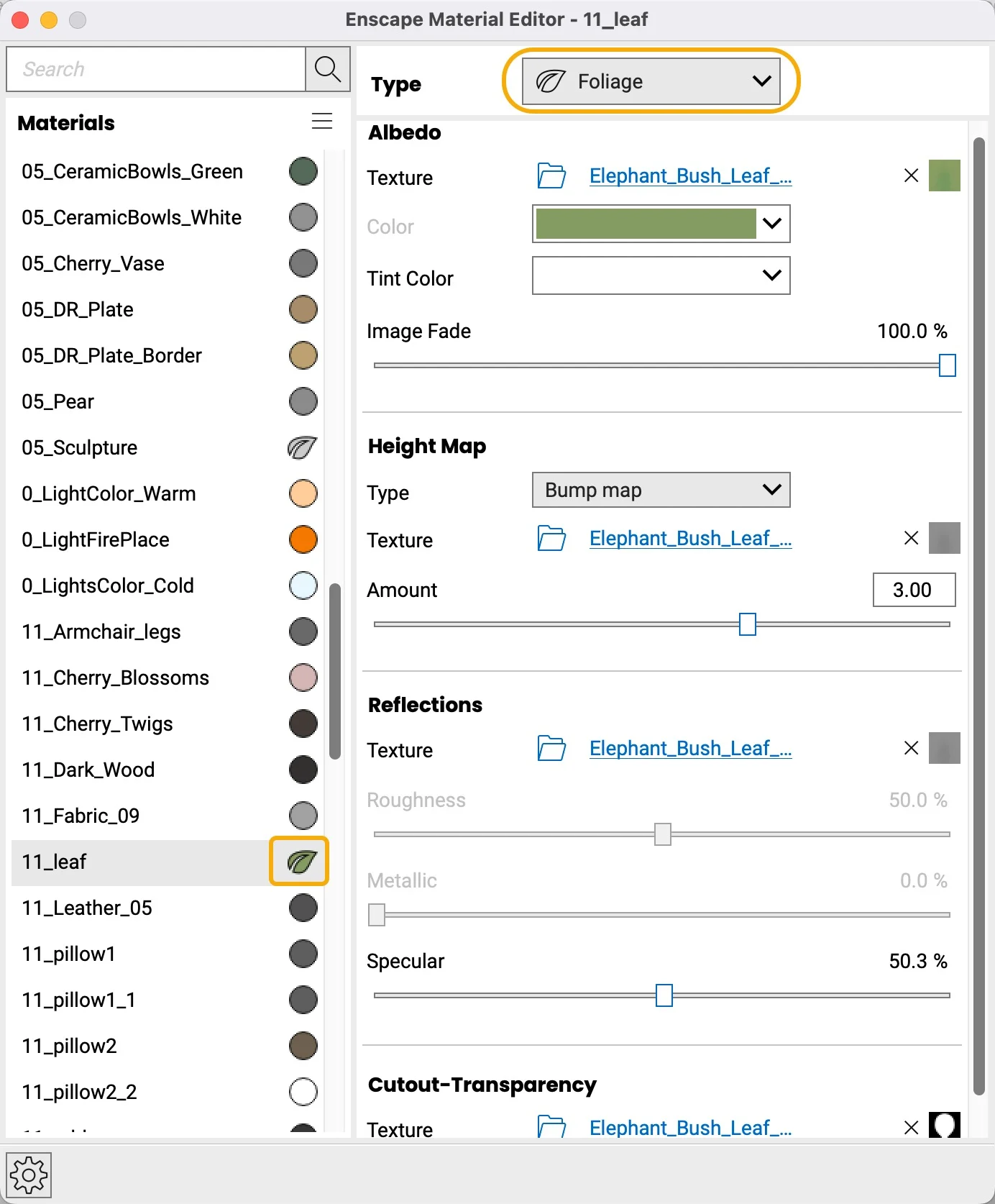
Next to the name of the material, you will see an icon that indicates what kind of Enscape material is selected.
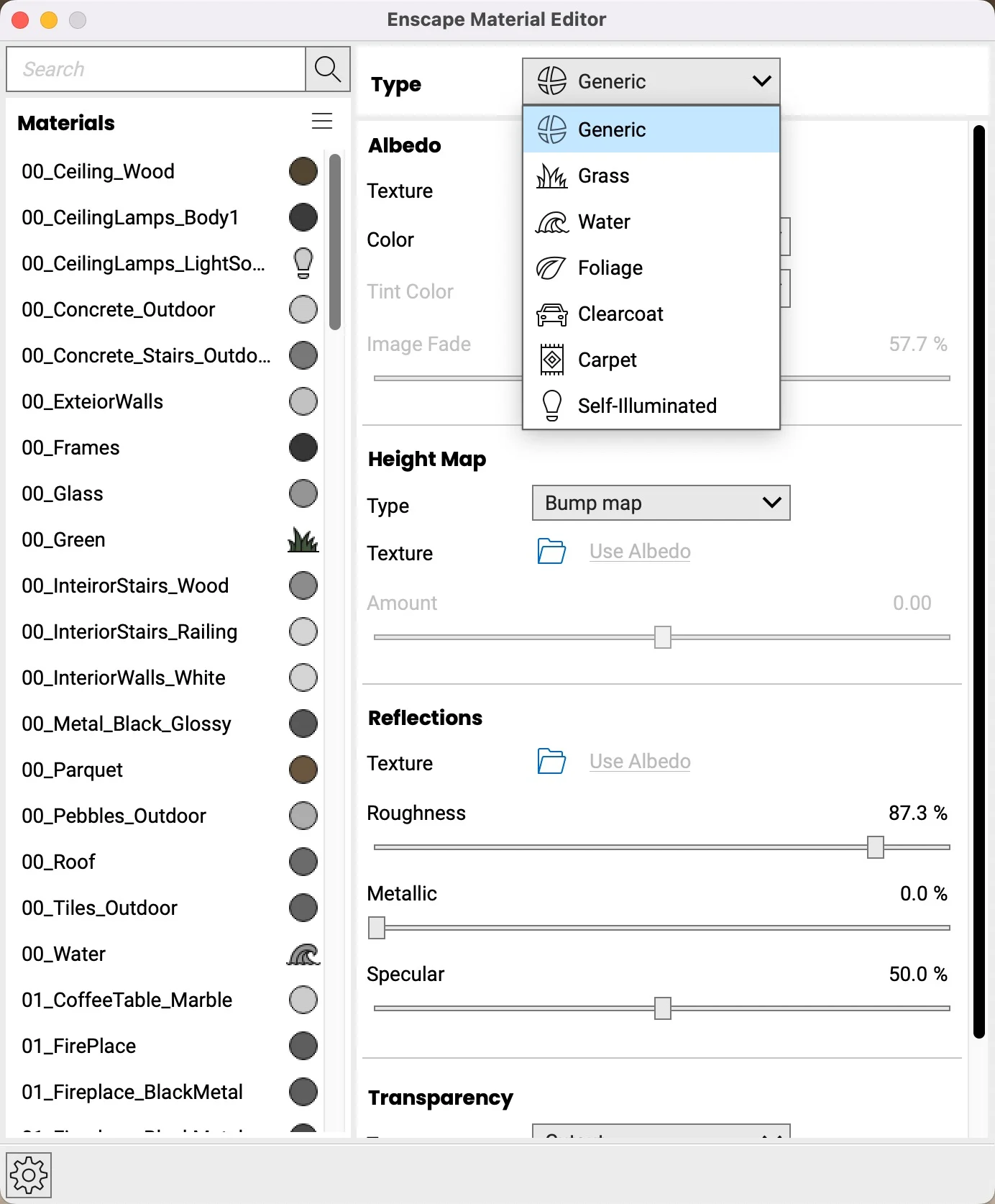
Everyone has a type. So do these materials.
Generic materials
This material type is used for most materials you’ll use in your model and is suited for any materials that aren’t typically rendered, such as grass blades, water surfaces, or those that have translucency applied. These materials will have the • ball for an icon. You will notice additional material sections such as Albedo, Bump/Normal/Roughness. Add in these different material maps to help add more realism to your materials.
Albedo
The Albedo map is the base color of the material. The big difference between the Albedo map and the traditional Diffuse map is the Albedo map has the shadows removed from the texture. This is so materials will look natural in every lighting condition.
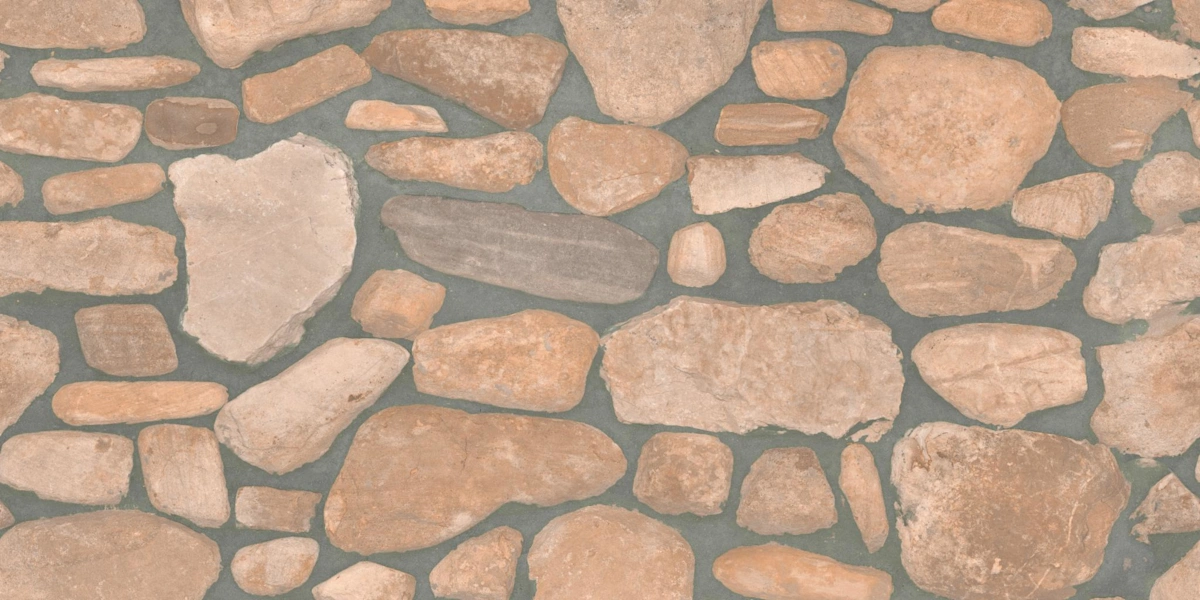
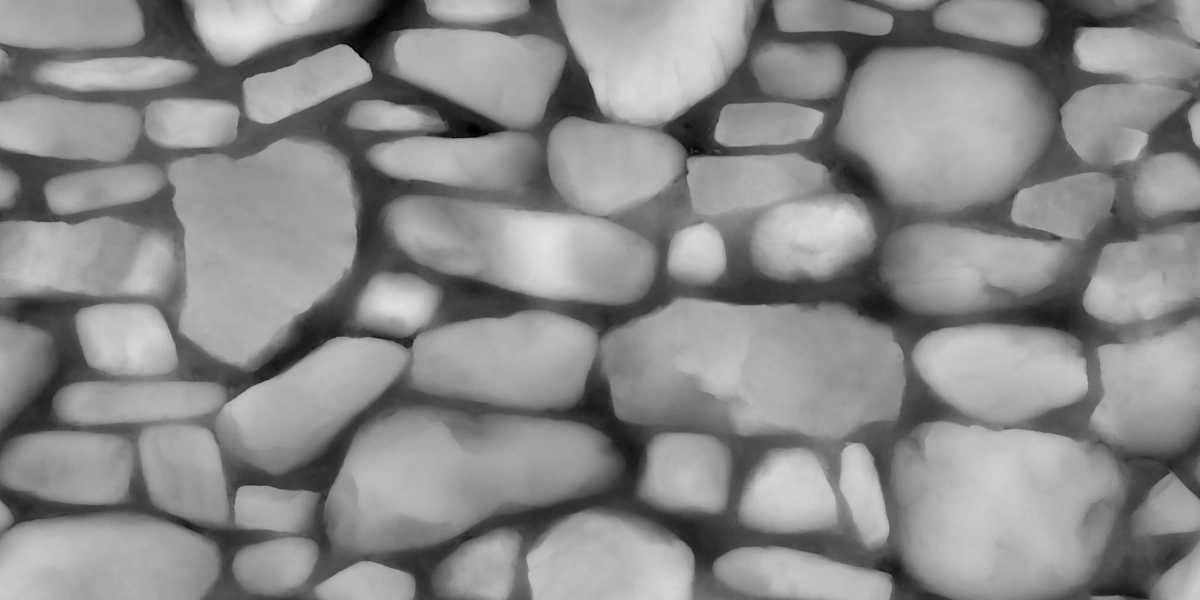
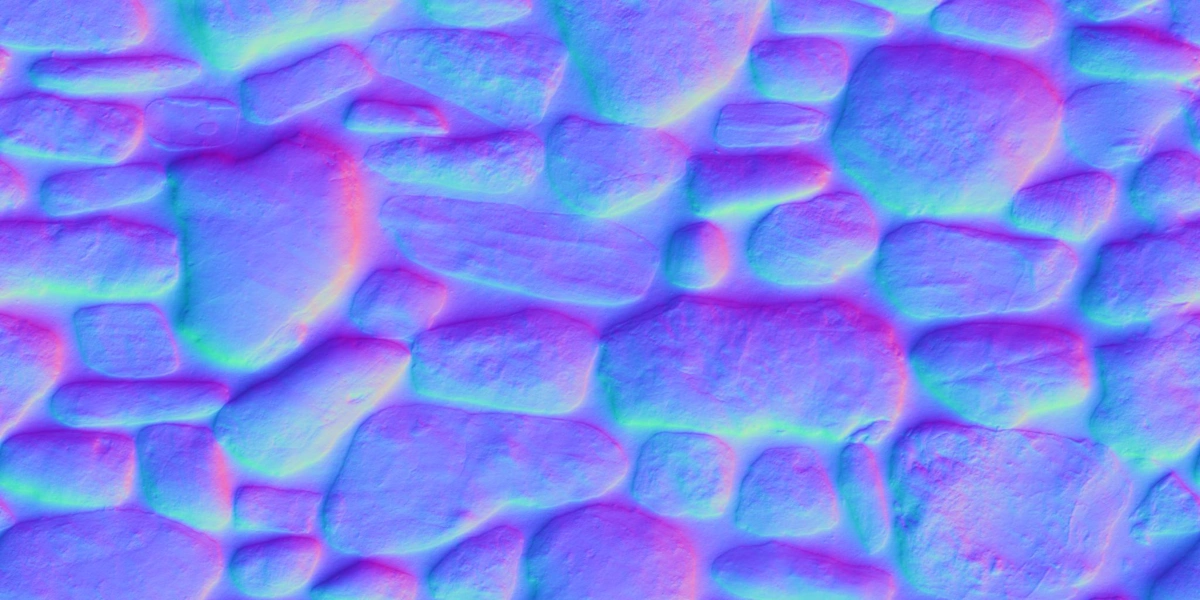
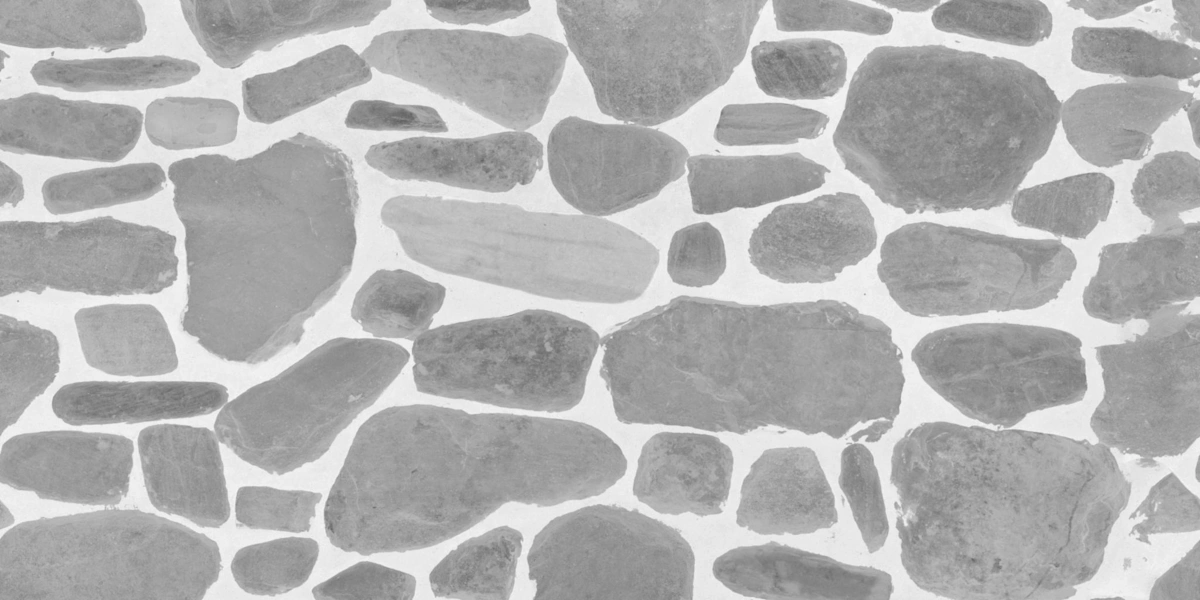
Albedo, Displacement, Normal, and Roughness on a rock wall.
Bump/Normal/Displacement
A Normal map decides where dents and bumps are on the object and is much more advanced than the regular Bump map. Its 3D look is due to its information about bumps and dents in the XYZ axes. A Displacement map is a more advanced version of a Bump map and will give the appearance of a 3D effect.
Roughness
Imperfections are the key to visual perfection! The Roughness map controls how surface imperfections are displayed. Rough materials scatter reflected light in more directions than smooth materials, which controls how blurry or sharp a reflection is.
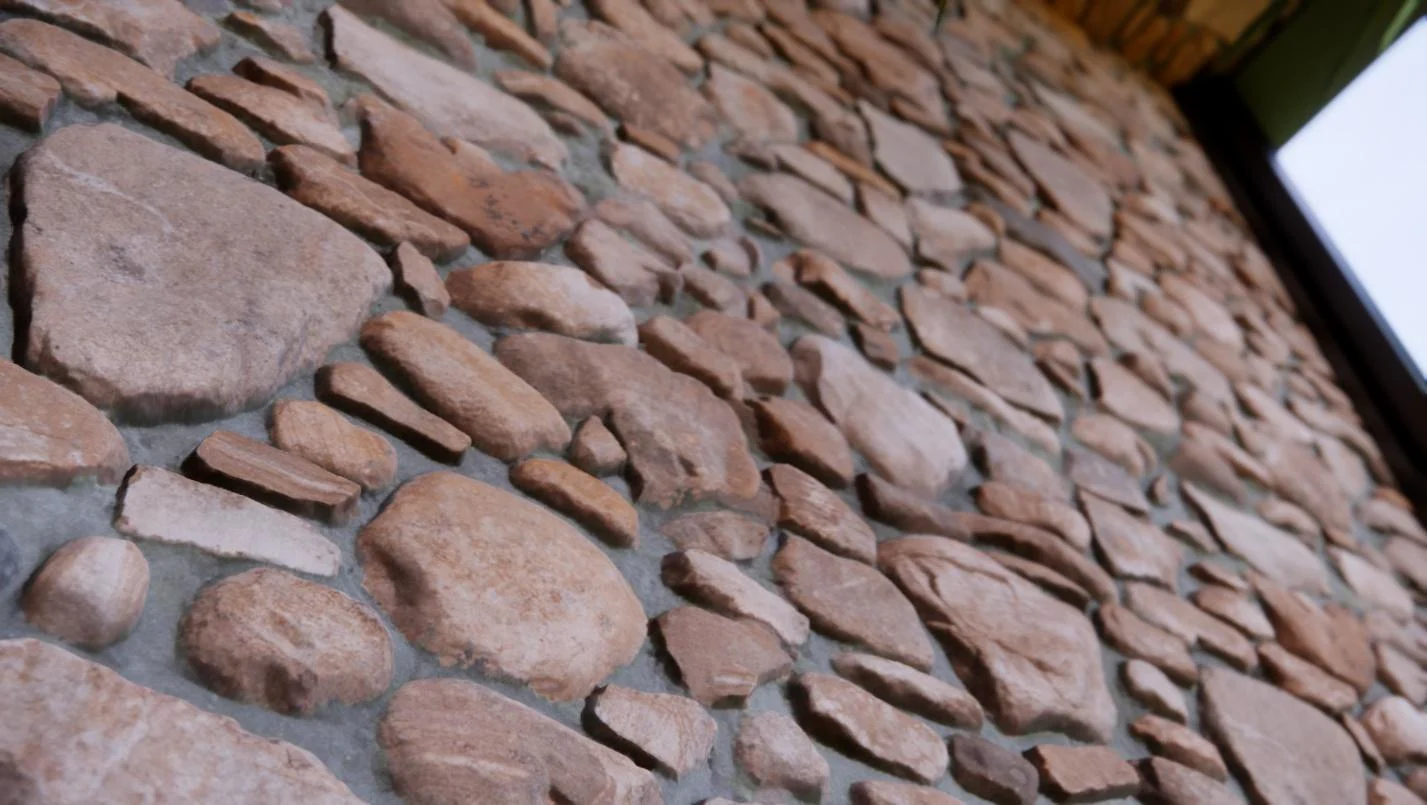
Roughness Map
Many free and paid resources have materials with these material maps already created, including ambientCG, 3DTextures, textures.com, and Poly Haven.
Video texture
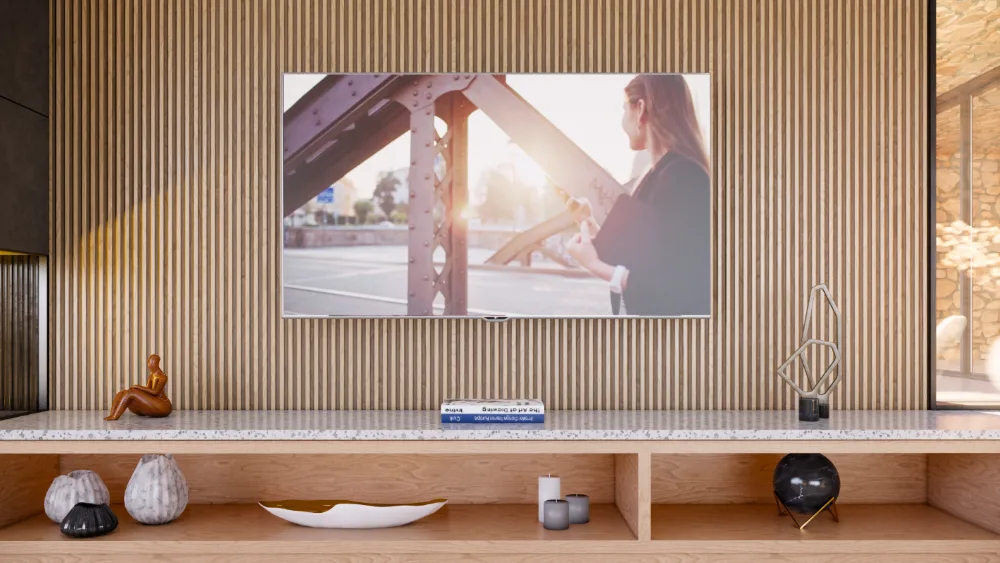
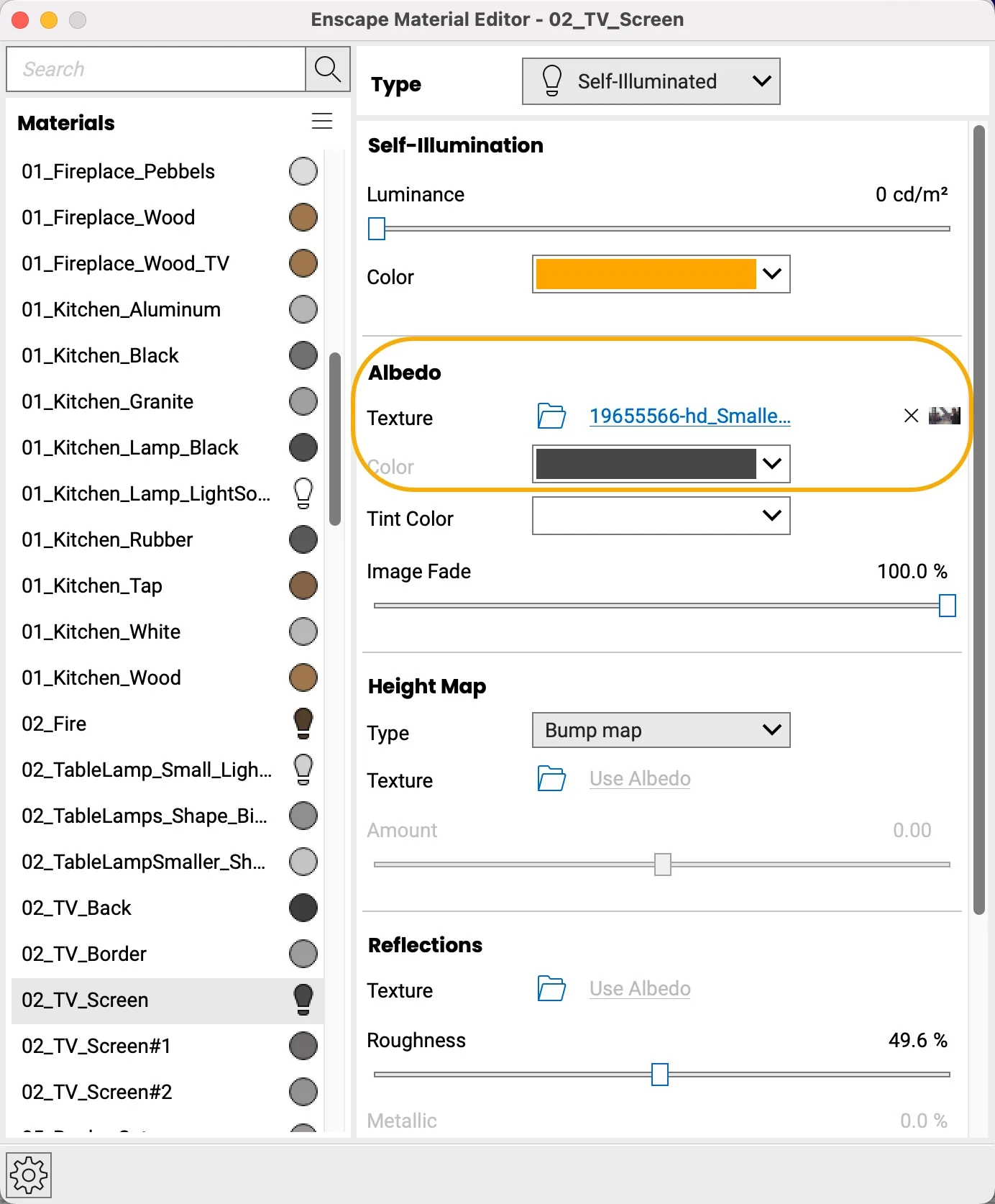
Create a dynamic story by adding video content focused on your client to your model. To do this, add a video file to the Albedo map channel. Now, move around your scene, and watch the video play on the surface you applied it to.
*Tip Turn the material type to a Self-Illuminated Material and adjust the color for a glow effect from the screen.
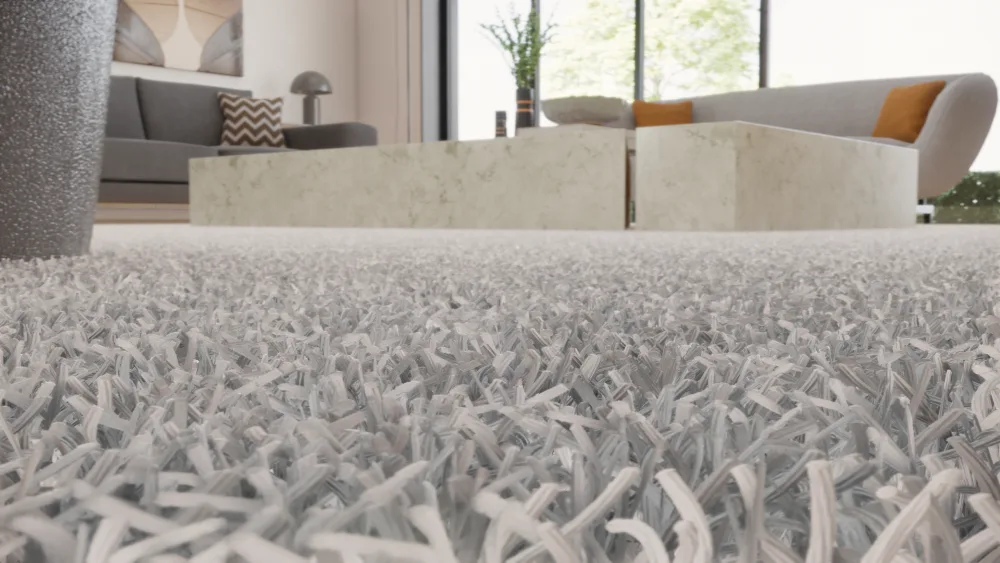
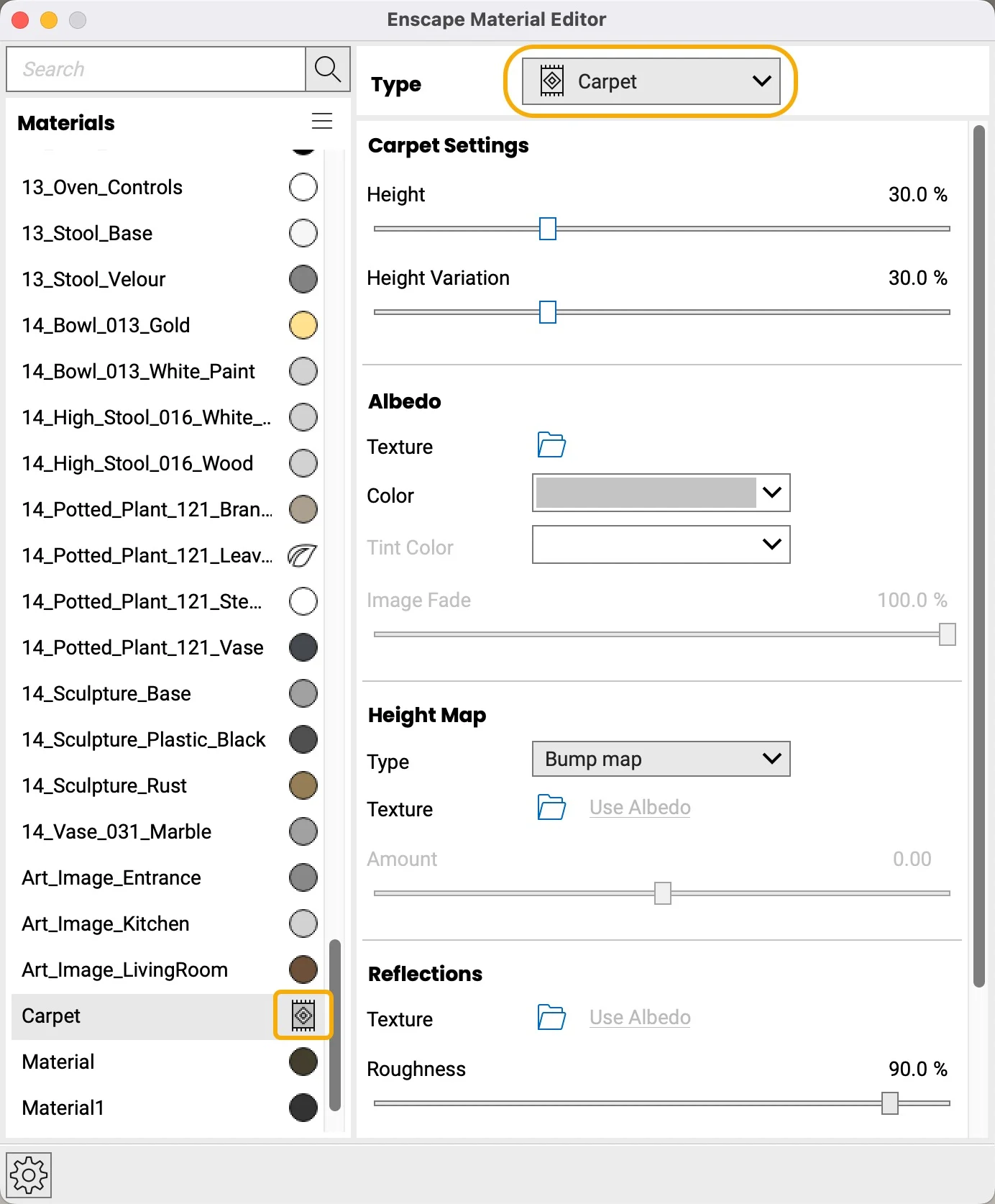
Carpet material
This material is used for carpets and contains adjustable, pre-built sprites that act like carpet fibers. These materials will have a carpet icon next to them.
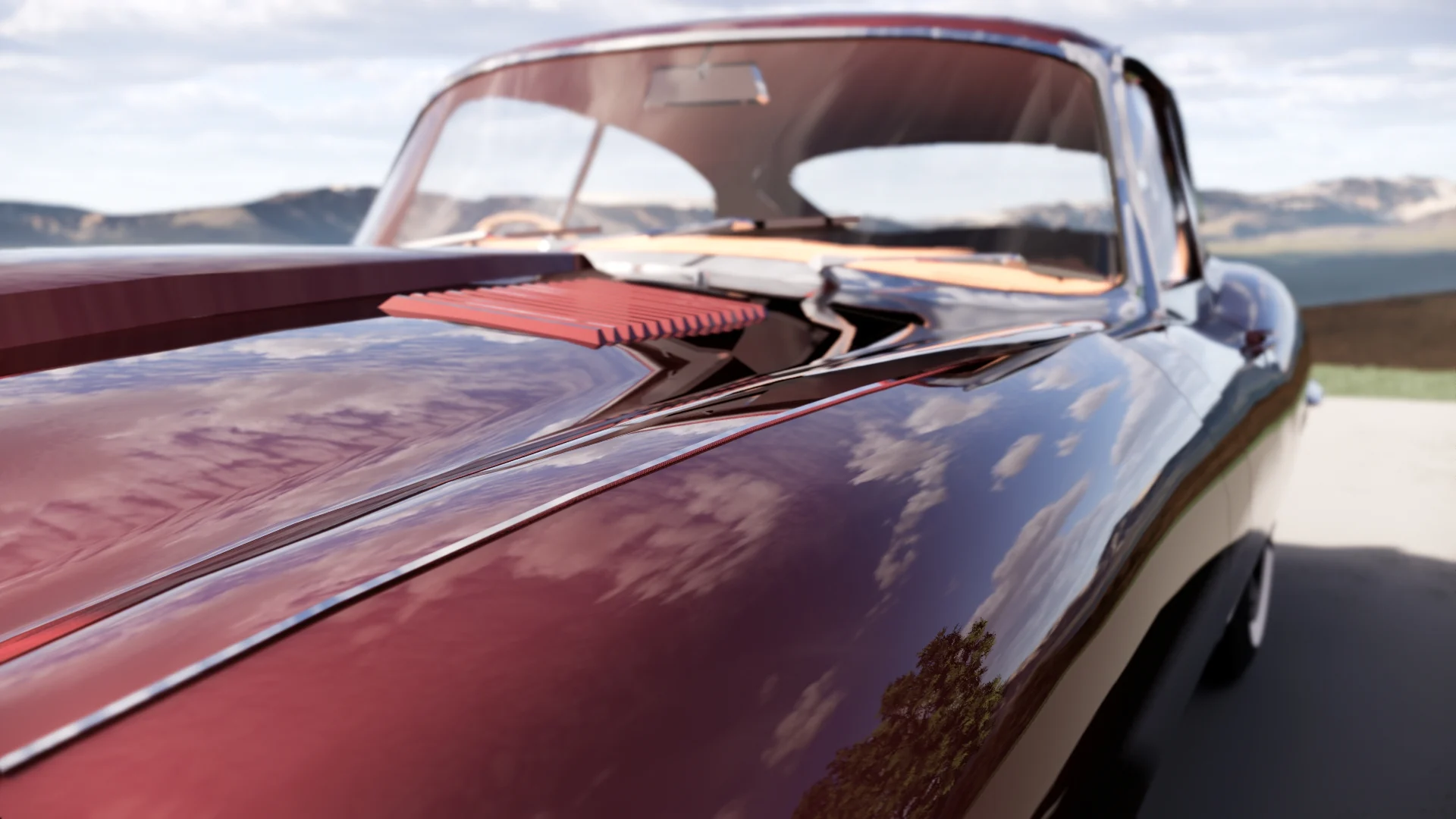
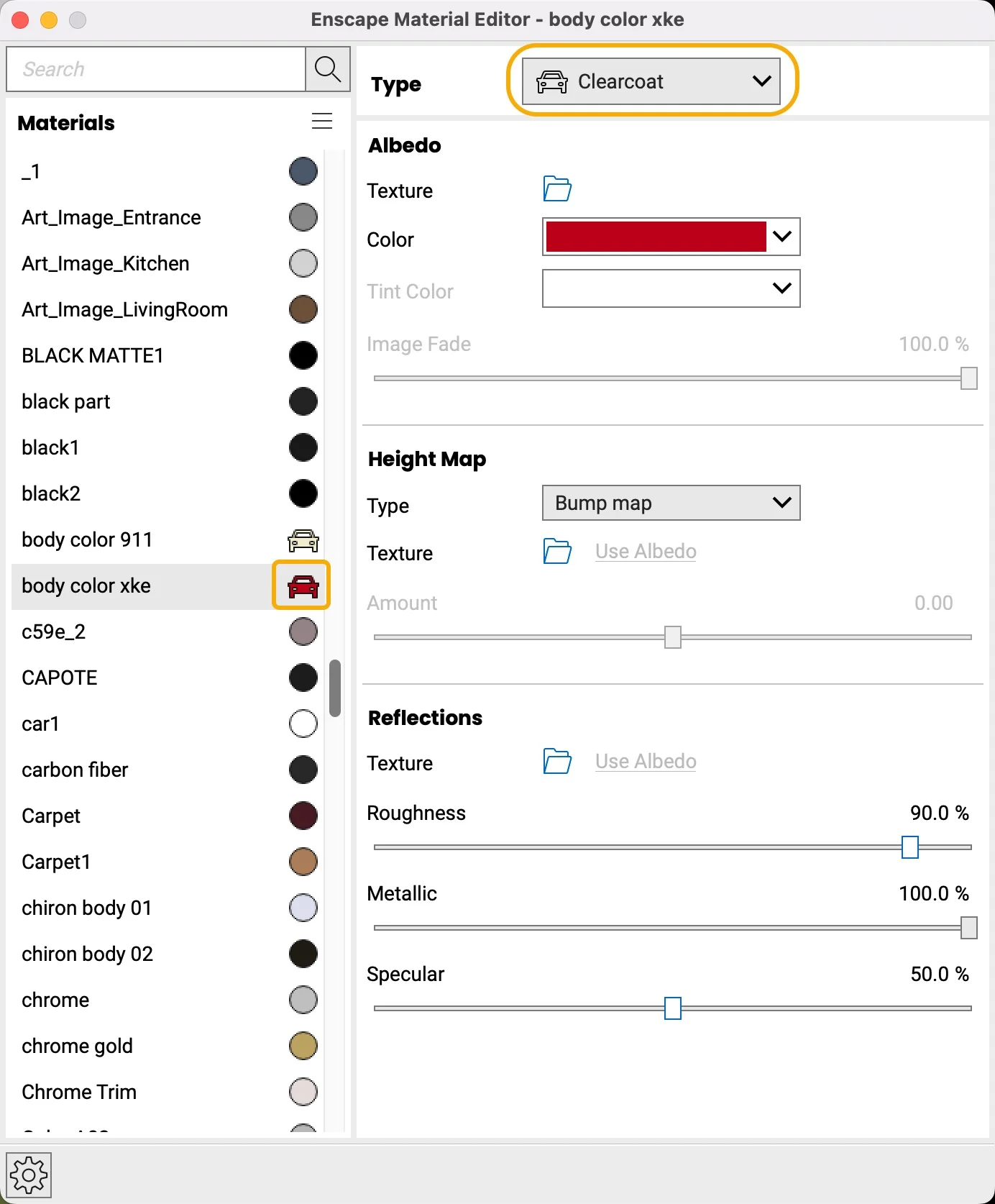
Clearcoat material
Want a car so shiny it will reflect the clouds? This material will imitate the type of paint found on vehicles. Find it by an intuitive car icon within the Enscape Material Editor.
Foliage material
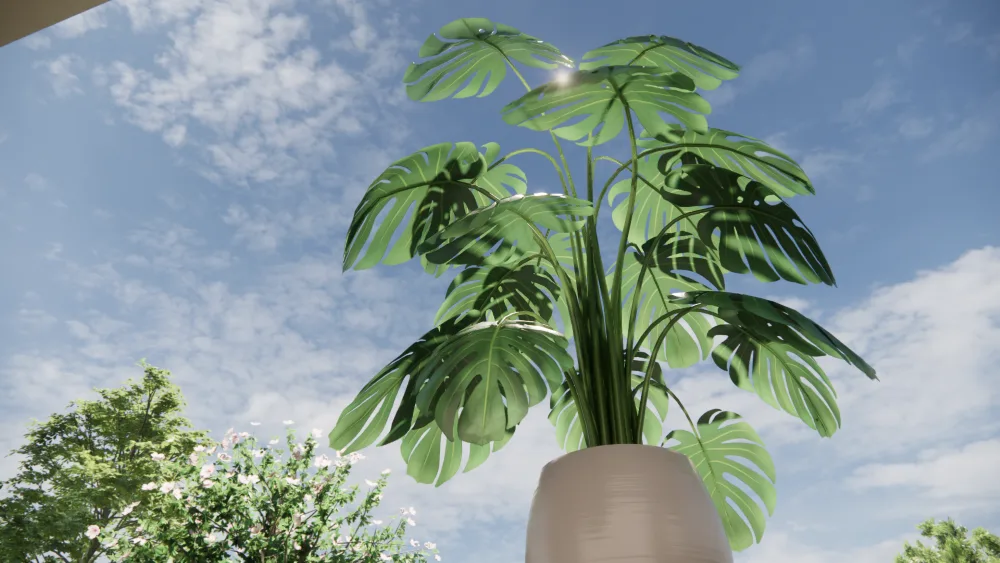
Use foliage material for assets that have only a single face. This will give the appearance of translucency and is typically used for leaves and curtains. This material will have a leaf icon next to its name.
Water material
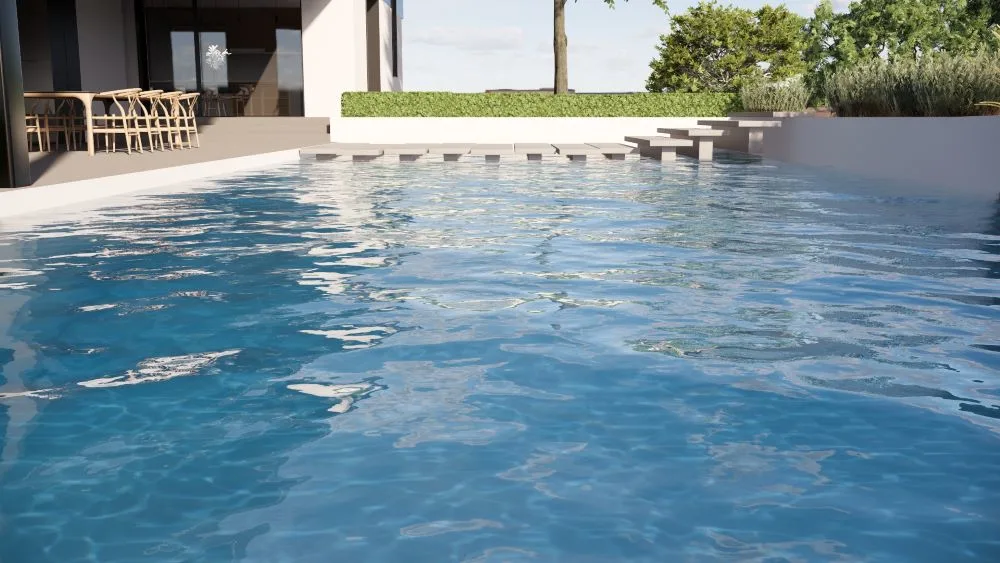
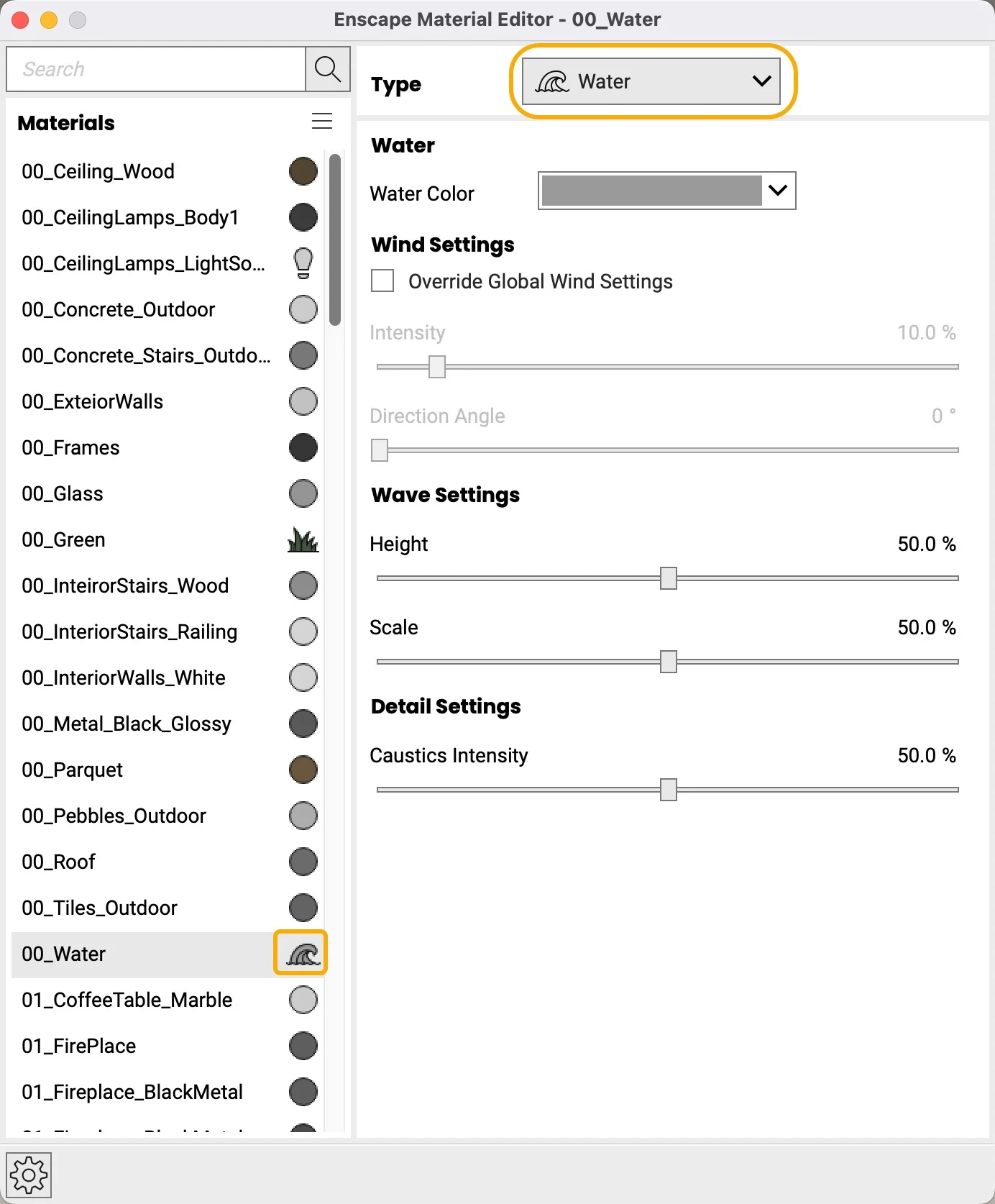
The water material will turn any surface into water. This material will have a wave icon next to its name. There are options for controlling the color of the water, wave settings, and caustic intensity. This material can only be applied to horizontal surfaces.
*Tip The texture underneath the water will also affect the color of the water
Self-Illuminated material
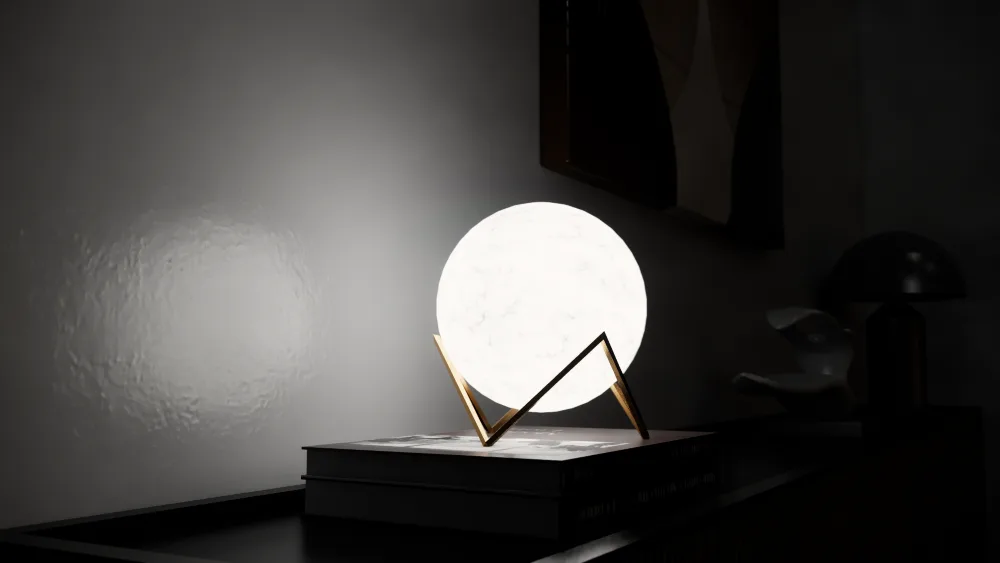
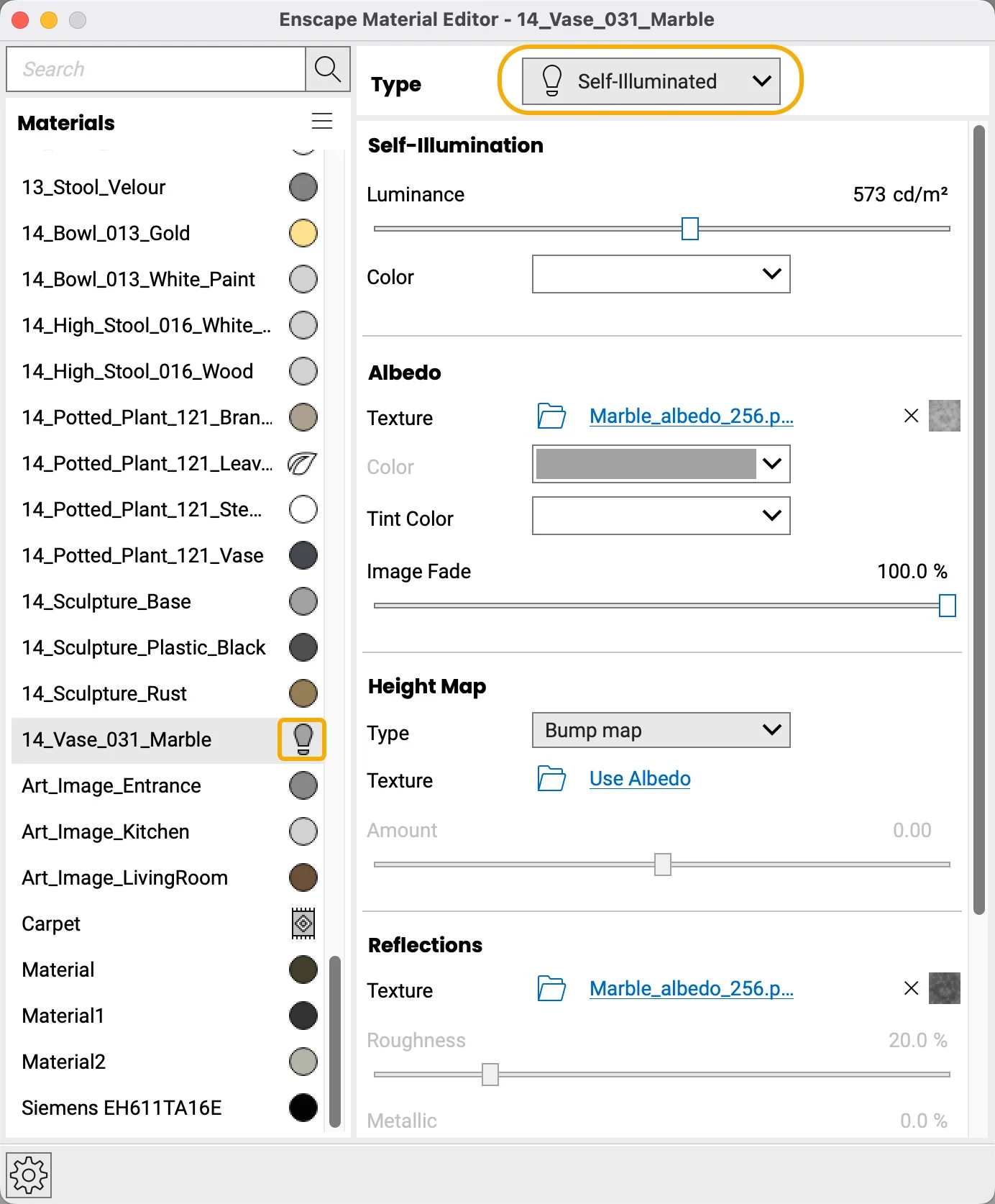
Illuminate your workflow with self-illuminated material (see the light bulb icon). It will turn any surface into a light source. You can adjust the luminance value and the ability to change the color of the light source.
*Note: This material type is used to create custom lighting fixtures. Simply assign the material to the part where the glass would be, and it acts as a light!
*Tip For more lighting tips, take a look at this beginner’s guide to lighting in SketchUp and Enscape.
Grass material
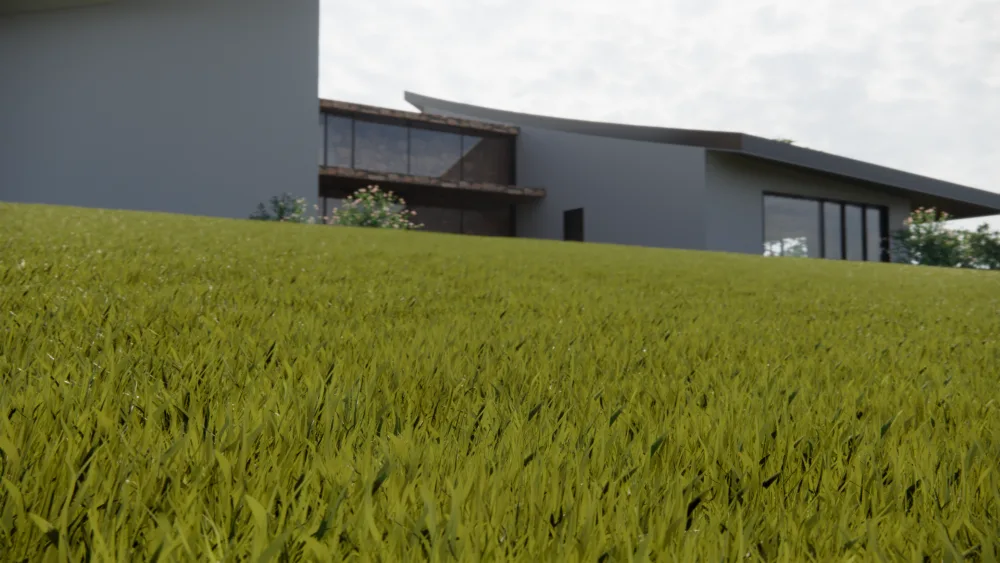
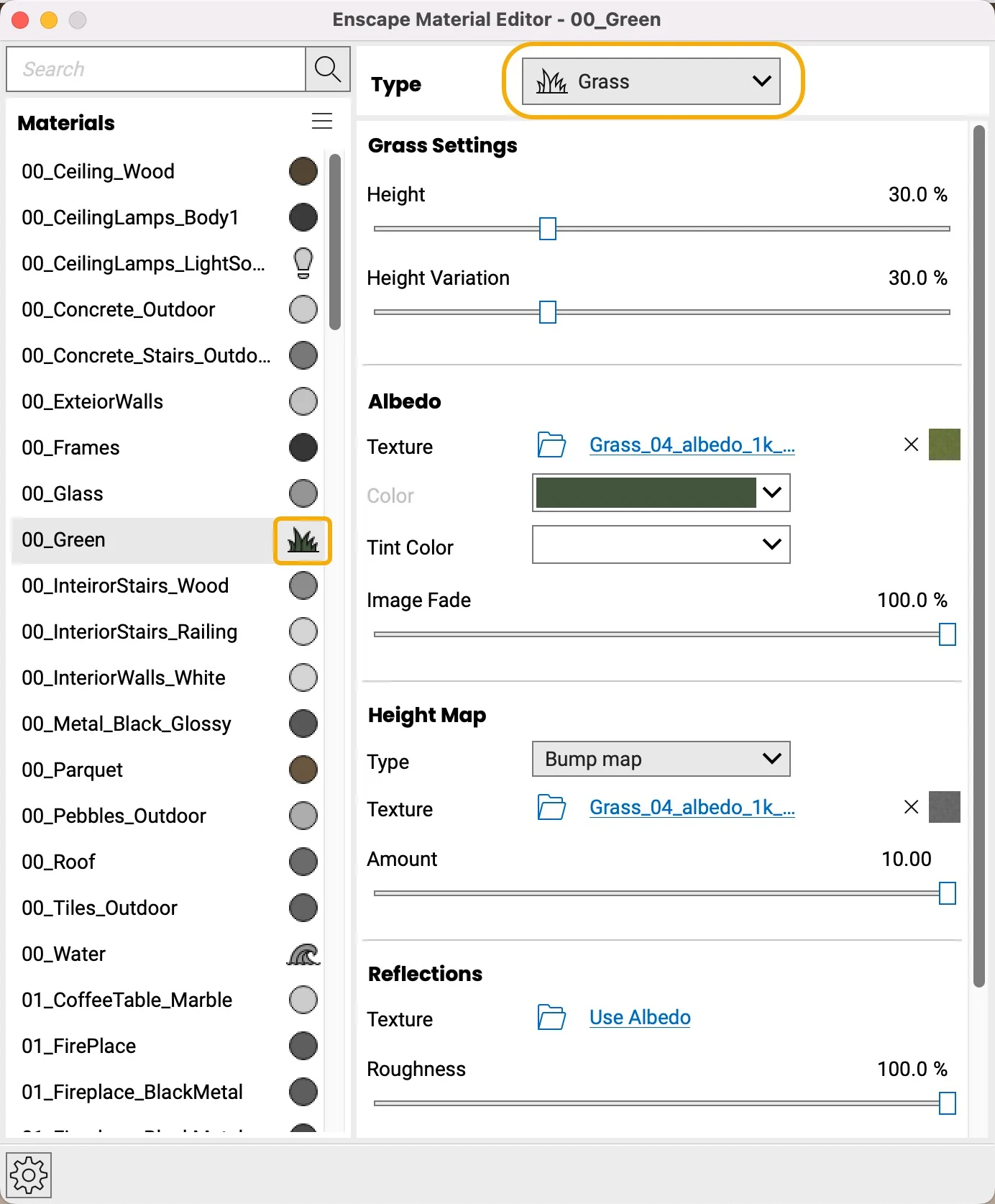
The grass material will turn any horizontal surface into a lush grass lawn! You can adjust the height and height variation parameters.
*If you have a vertical surface that you are trying to turn into grass, it’s a no-go. Enscape grass can only be on horizontal or sloped surfaces.
With these stunning material textures at your fingertips, it’s time to elevate your visual storytelling with Enscape, especially now that the Mac version is available. (Something you can try for free for 14 days!)
Make sure you have a SketchUp subscription to access all the features needed to build your best model. For more information on the Enscape Material Editor, check out this article.